Headless ICMP ping sweeps for Windows Server Core without the desktop agent UI
Ping Sweep Discovery via Windows Server Core
Use this guide when the discovery agent runs on Windows Server Core (or any headless Windows Server install) where there is no desktop shell, system tray, or in-app configuration UI, and you want to run ICMP ping sweeps of the subnets you select in LightMesh.
For Windows 10/11 or Server with Desktop Experience, use Ping Sweep Discovery instead.
The headless agent runs the same ping sweep as the desktop build: it pulls the enabled subnets and interval from LightMesh over GraphQL, sends ICMP Echo to the hosts in those subnets, then uploads the reachable hosts. Responding addresses have their Last Seen timestamp refreshed in LightMesh, and each cycle is recorded as a PING_SWEEP scan.
Enable, interval, and subnet selection are always controlled from LightMesh, not from config.toml. The Server Core agent only turns the local ping sweep switch on and applies whatever LightMesh sends it.
Desktop vs Server Core deliverable
| Deployment | Download | Install path |
|---|---|---|
| Desktop / Server with UI | Download MSI on Support > Downloads | MSI installer or GUI app; start ping sweep from the Ping Sweep tab on the agent Dashboard |
| Windows Server Core | Download ZIP on Support > Downloads; do not use the MSI as the primary install | Extract exe + config.toml, edit config, enable ping sweep and register the Windows Service via PowerShell |
Server Core build behavior:
- No dashboard, tray, or
--ui(headless binary exits with an error if--uiis passed). - GraphQL sync only; do not set
lightmesh.modeinconfig.toml(ignored if present). - Ping sweep is driven by PowerShell CLI flags and the Windows Service, not the desktop Dashboard’s Ping Sweep tab.
Prerequisites
On the Windows Server Core host where you install the agent:
- Operating system: 64-bit Windows Server Core 2016 or later.
- Permissions: Local Administrator to install, uninstall, or control the Windows Service. Sending ICMP Echo typically requires the elevated service account the agent runs under.
- Network: The agent host must reach the target subnets over ICMP. Firewalls, ACLs, or host-based firewalls that drop ICMP Echo make otherwise-live hosts appear down. Outbound HTTPS from the agent host to your LightMesh URL (hostname only, no
/graphqlpath) is also required so the agent can pull config and upload results. - Disk: Write access for the SQLite database path and log files configured in
config.toml.
LightMesh URL examples
Set base_url under [lightmesh] in config.toml to the same hostname you use in the browser:
- SaaS:
https://next.lightmesh.com - Self-hosted:
https://mylightmesh.domain.com
Who can configure ping sweep and download the agent
Sign in to LightMesh as a user with the Owner or Administrator application role to open Admin > API Keys, Support > Downloads, and Configuration > Discovery in the sidebar. Only those roles can change ping sweep settings (enable/disable, interval, and subnet selection). On the Windows Discovery Agent card, use Download ZIP for Server Core (not Download MSI).
1. Configure ping sweep in LightMesh
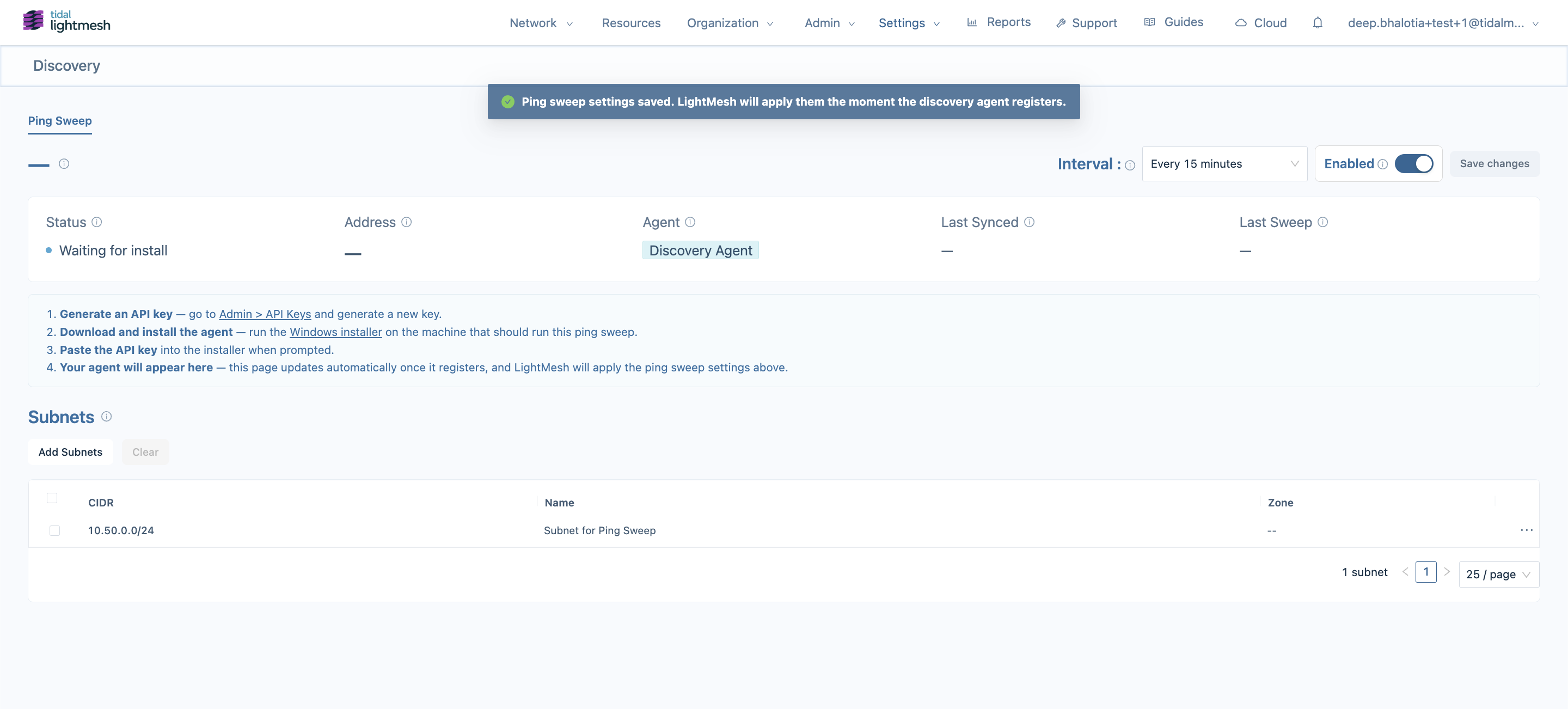
Ping sweep settings live in LightMesh. Configure them first. LightMesh applies them automatically the moment the agent registers, so it is safe to do this before the Windows host is ready.
- Go to Configuration > Discovery and open the Ping Sweep tab. Status shows Pending install.
- Click Add Subnets, select the subnets this agent should sweep, and add them.
- Set the Interval (Every 15 minutes, 30 minutes, 1 hour, 2 hours, 6 hours, or 24 hours) and turn Enabled on.
- Click Save changes. LightMesh confirms the settings are saved, and Status changes to Waiting for install.
Choose subnets this host can actually reach. ICMP Echo only succeeds for subnets that are routable from the Server Core host. A quick way to find the host’s own subnet is
Get-NetIPAddress -AddressFamily IPv4. Subnets wider than/16are skipped by default.
2. Create an API key
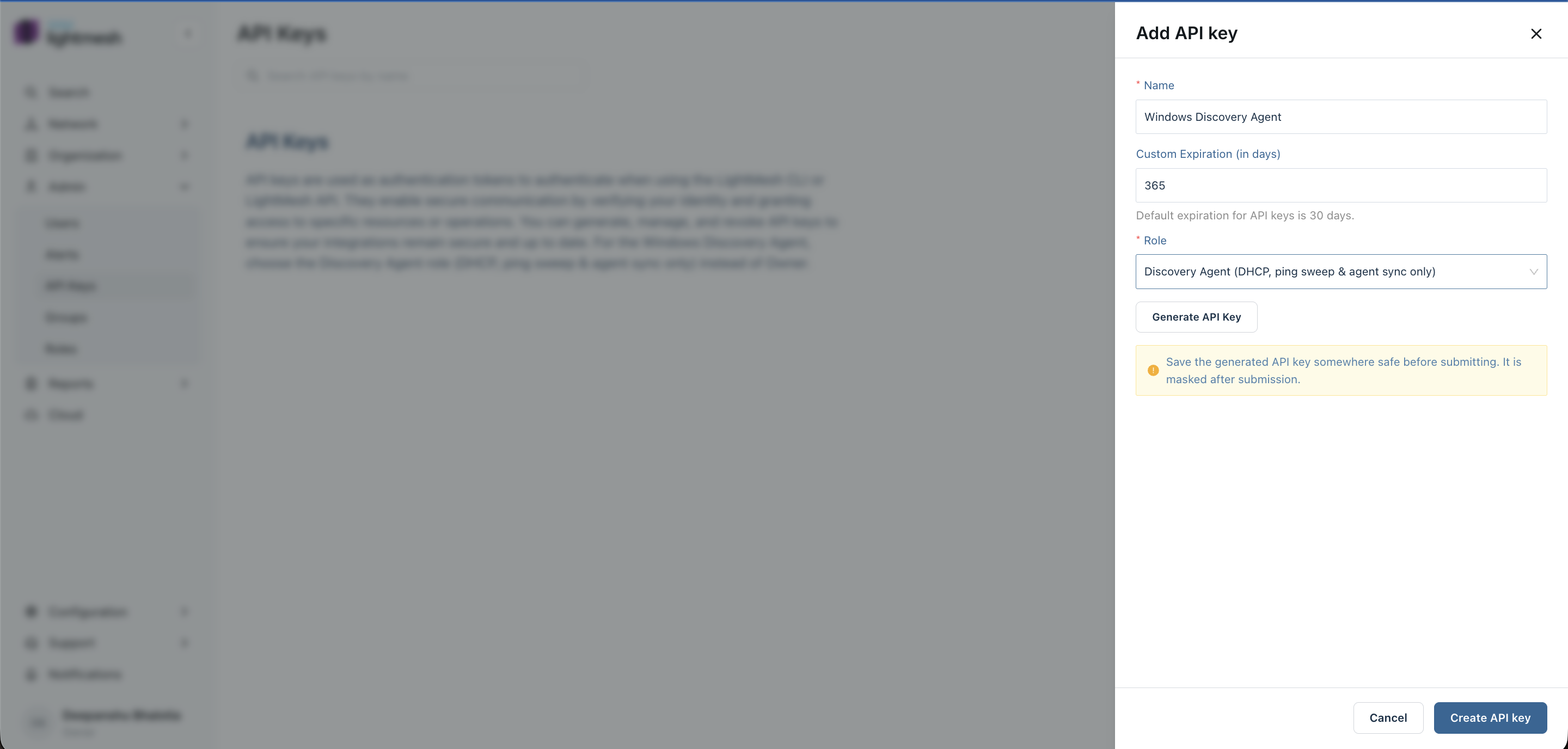
- In the LightMesh sidebar, go to Admin > API Keys and add a new API key.
- In the Add API key panel, enter a Name (for example
Windows Discovery Agent) and, optionally, a Custom Expiration (in days). Keys expire after 30 days by default. - Set Role to Discovery Agent (DHCP, ping sweep & agent sync only) so the key can register the discovery agent and upload ping sweep results without full tenant API access.
- Click Generate API Key, copy the key securely for
api_tokeninconfig.toml, then click Create API key. The key is masked after you submit.
3. Download the Server Core agent zip
Do not install the desktop MSI on Server Core as your primary deliverable. The Server Core ZIP supports both DHCP and ping sweep.
- In the sidebar, go to Support > Downloads.
- On the Windows Discovery Agent card, expand System requirements to confirm your host meets the Server Core and Ping Sweep requirements. Ping-only agents do not need the Microsoft DHCP PowerShell module.
- Under Server Core package (.zip), click Download ZIP.
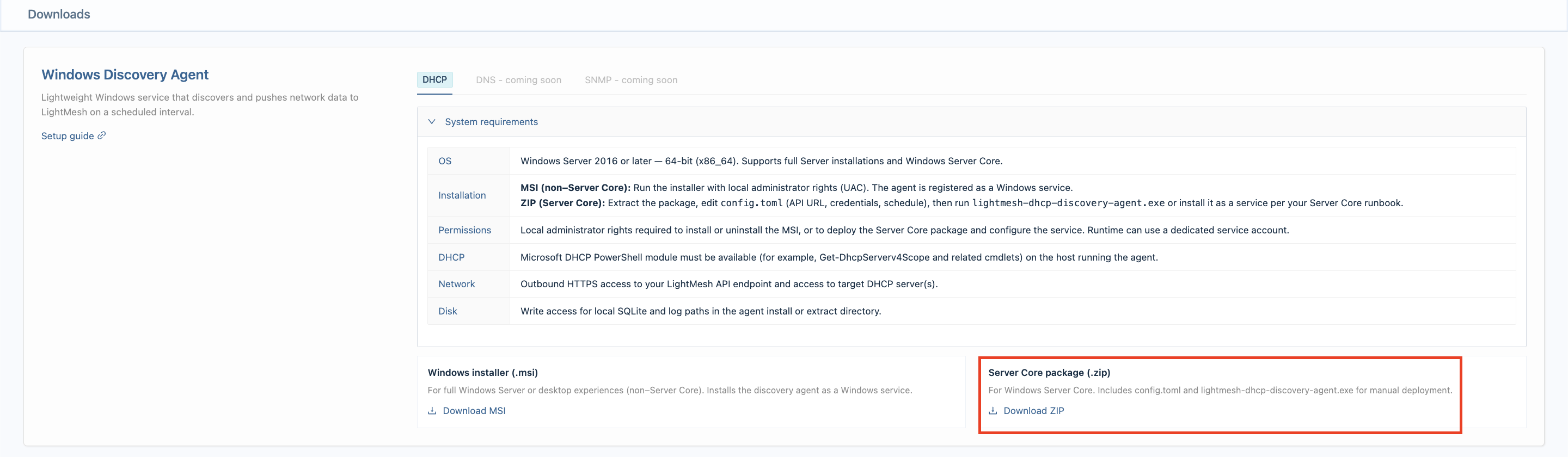
The zip contains lightmesh-discovery-agent.exe and config.toml at the top level (no subfolder). Transfer the zip to your Server Core host and extract both files into your install directory.
Optional direct download (same package as Download ZIP):
https://get.lightmesh.com/lightmesh-discovery-agent-server-core-win-64-latest4. Installation layout
-
Create an install folder, for example:
C:\Program Files\lightmesh-discovery-agent\ -
Extract both
lightmesh-discovery-agent.exeandconfig.tomlinto that folder. -
From an elevated PowerShell session,
cdto the install directory.
Do not rely on double-click for normal operation on Server Core. A headless build with no arguments runs one collection cycle and exits.
5. Configure config.toml
Edit config.toml in the same directory as the executable (notepad .\config.toml or your configuration management tool).
Set at minimum:
| Section | Keys | Notes |
|---|---|---|
[lightmesh] |
base_url, api_token |
LightMesh URL and the API key from step 2. |
[lightmesh] |
enable_ping_sweep |
Turn ping sweep on. You can set true here directly, or leave it and use --enable-ping-sweep (step 6). |
[lightmesh] |
enable_dhcp_collection |
Set false for a ping-sweep-only agent so no DHCP server record is created. Leave true if this host also collects DHCP. |
[lightmesh] |
discovery_agent_id |
Leave empty on first install; the agent bootstraps an ID when config.toml is writable. |
[sqlite] |
path |
Writable path for the local database. |
[ping_sweep] |
concurrency, timeout_ms, min_prefix_len, max_hosts_per_cycle |
Local ICMP tunables only. Enable, interval, and subnet selection come from LightMesh. |
Example structure for a ping-sweep-only agent (values are placeholders):
[collector]
agent_version = "0.1.0"
collector_id = "lm-discovery-win-001"
host_name = "discovery01"
poll_interval_secs = 300

[source]
server_fqdn = "discovery01.example.local"

[sqlite]
path = "C:\\Program Files\\lightmesh-discovery-agent\\bin\\agent.db"
queue_batch_size = 500
queue_max_send_attempts = 25
queue_retry_base_secs = 30
queue_retry_max_secs = 3600

[lightmesh]
base_url = "https://next.lightmesh.com"
api_token = "your-api-key"
discovery_agent_id =
enable_dhcp_collection = false
enable_ping_sweep = true

[powershell]
timeout_secs = 30

# Local ICMP tunables. Enable / interval / subnets are set in LightMesh.
[ping_sweep]
concurrency = 64
timeout_ms = 800
min_prefix_len = 16
max_hosts_per_cycle = 65534

[logging]
file = "agent.log"
Treat config.toml as sensitive (especially api_token). Restrict file permissions in production; do not commit real tokens to source control.
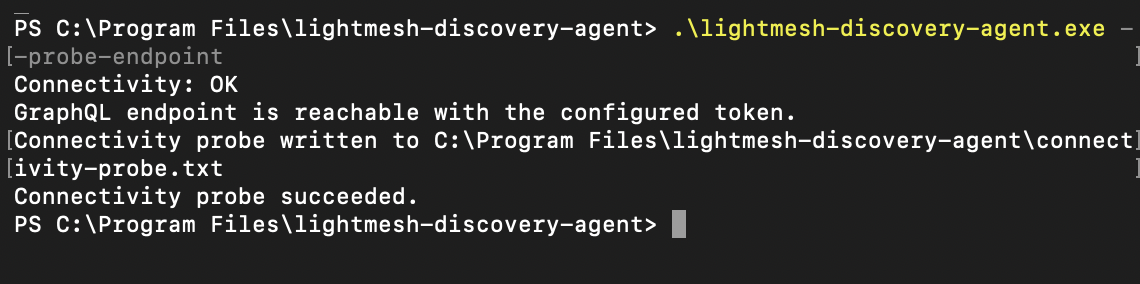
Test LightMesh connectivity
Before enabling ping sweep, validate base_url and api_token with the headless connectivity probe (same classification as agent.log sync errors):
.\lightmesh-discovery-agent.exe --probe-endpoint
Get-Content .\connectivity-probe.txt- Success: prints
Connectivity probe succeeded.and exit code0. - Failure: non-zero exit code and a classified summary on the console (DNS, TCP, TLS, proxy, timeout, HTTP 401/403/404/5xx, GraphQL errors), also written to
connectivity-probe.txt. No API tokens are written to the report.
6. Enable ping sweep and bootstrap the agent identity
Ping sweep uses a Discovery Agent identity (discovery_agent_id), not a DHCP server. On the first GraphQL cycle the agent creates that record and writes the ID back into config.toml.
-
Turn ping sweep on (skip if you already set
enable_ping_sweep = trueinconfig.toml):.\lightmesh-discovery-agent.exe --enable-ping-sweep -
Run one cycle so the agent registers and bootstraps
discovery_agent_id:.\lightmesh-discovery-agent.exe --collect-once

7. Check ping sweep readiness
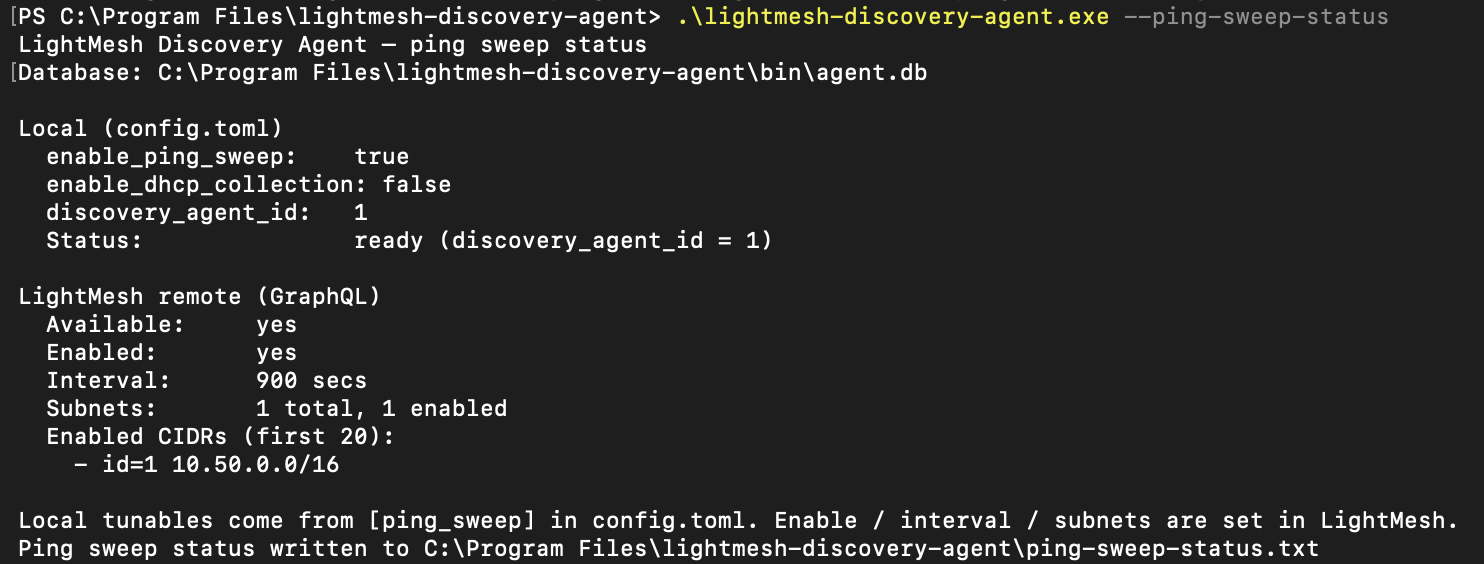
Confirm the agent is ready and see what LightMesh is telling it to sweep — this reaches out to LightMesh but sends no ICMP:
.\lightmesh-discovery-agent.exe --ping-sweep-status
Get-Content .\ping-sweep-status.txt
Look for:
- Local Status:
ready (discovery_agent_id = N). - Remote Available:
yes(LightMesh has ping sweep turned on for your deployment). - Remote Enabled:
yes, with one or more Enabled CIDRs listed — these are the subnets you selected in step 1.
Optionally preview the hosts that would be probed, without sending any ICMP:
.\lightmesh-discovery-agent.exe --dry-run-ping-sweep
Get-Content .\ping-sweep-dry-run.txt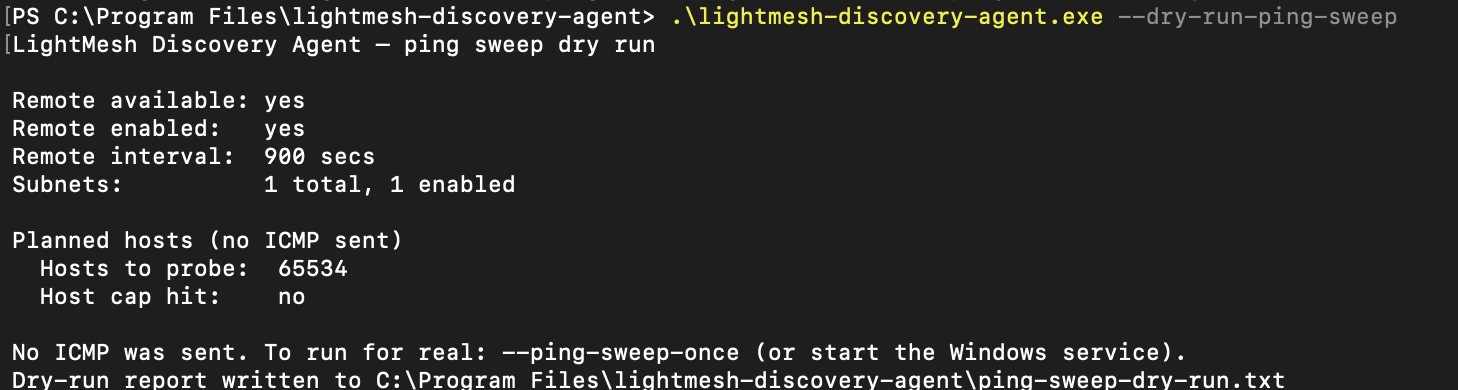
8. Run a ping sweep
Run one real sweep to validate end to end. This sends ICMP Echo and uploads reachable hosts:
.\lightmesh-discovery-agent.exe --ping-sweep-once
9. Register and start the Windows service
Once the one-shot sweep works, install the service so ping sweep runs on the schedule LightMesh sets (and DHCP too, if enable_dhcp_collection = true). From an Administrator PowerShell session in the install folder:
.\lightmesh-discovery-agent.exe --service-install   # prints: Service Installed
.\lightmesh-discovery-agent.exe --service-start     # prints: Service Started
There is one service. It runs DHCP collection (when enabled) and ping sweep in the same background loop; you do not install a separate service for ping sweep.
Stop or uninstall:
.\lightmesh-discovery-agent.exe --service-stop
.\lightmesh-discovery-agent.exe --service-uninstall
Turn ping sweep off again (leaves DHCP collection running if enabled):
.\lightmesh-discovery-agent.exe --disable-ping-sweep10. Verify without a GUI
-
Service state
Get-Service *lightmesh*
-
Ping sweep status (local config, remote config, and last completed sweep)
.\lightmesh-discovery-agent.exe --ping-sweep-status
Get-Content .\ping-sweep-status.txt
After a successful sweep, Last completed shows a timestamp and Last UP count shows how many hosts responded.
-
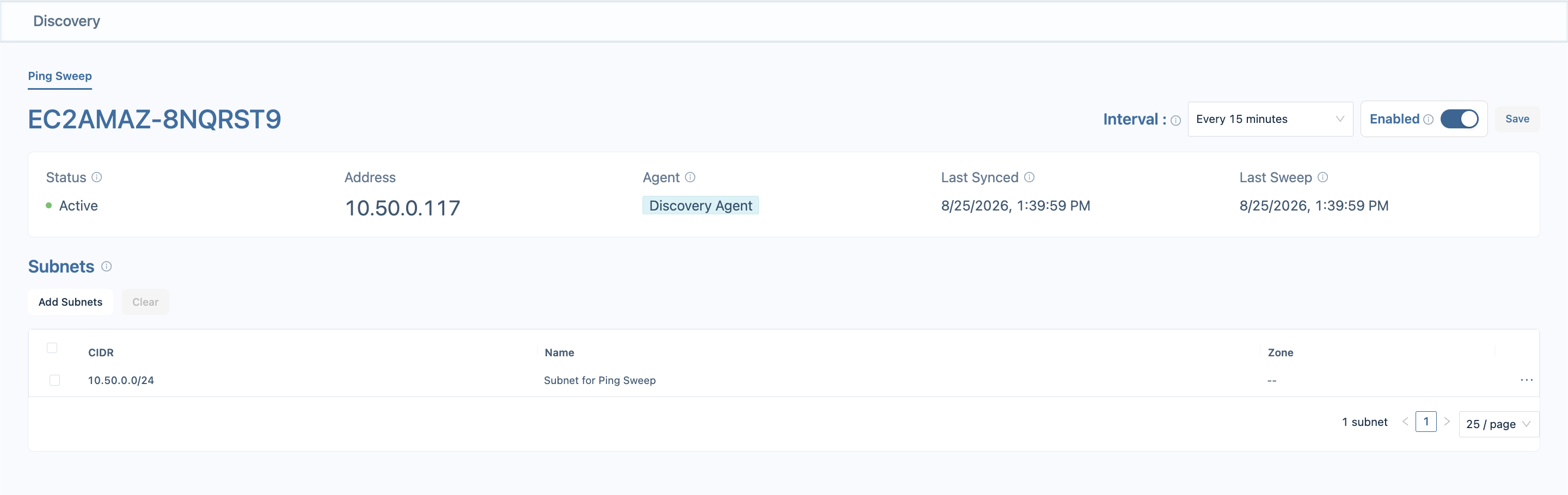
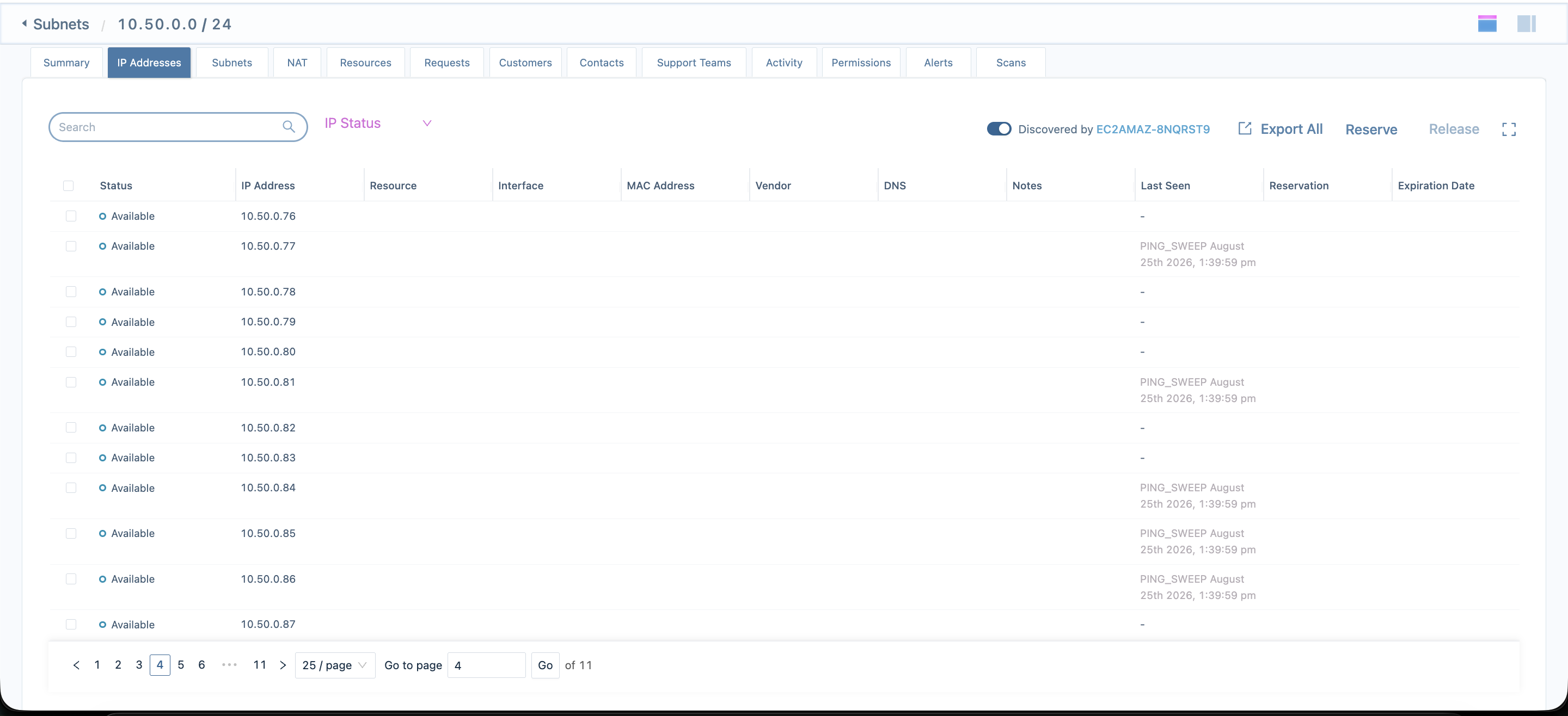
LightMesh UI: on Configuration > Discovery (Ping Sweep tab), the agent appears with its name and address, Status moves to Active, and Last Synced / Last Sweep populate. On a swept subnet’s IP Addresses tab, reachable hosts show a refreshed Last Seen.
- Logs
Signal Location Early bootstrap errors startup_error.lognext to the executableService helper errors service-error.txtConnectivity probe report connectivity-probe.txtPing sweep status snapshot ping-sweep-status.txtDry-run report ping-sweep-dry-run.txtRuntime tracing agent.log(or path from[logging]in config)
Upgrade (Server Core)
.\lightmesh-discovery-agent.exe --service-stop- Replace
lightmesh-discovery-agent.exewith the new build from the server-core zip (same headless artifact; not the desktop MSI). - Merge any new keys from the shipped
config.tomlinto your existing file if the template changed. .\lightmesh-discovery-agent.exe --service-start
Operational notes
- Enable, interval, and subnets are controlled from LightMesh, not the agent. The agent applies what LightMesh sends it on the next cycle.
- Ping sweep runs even if DHCP sync is paused in LightMesh — the two are independent.
- Wide subnets are skipped. By default subnets wider than
/16are not swept. Split large ranges if you truly need to sweep them. --ping-sweep-oncewaits for the service’s database lock if the service is mid-cycle; run one-shot validation before--service-start, or briefly stop the service.- Ping sweep updates Last Seen and scan history; it does not create or delete IP assignments by itself.
Troubleshooting
If ping sweep results do not appear in LightMesh:
-
Run
--ping-sweep-statusand read the output first. It tells you which gate is failing:- Local Status not
ready→ run--enable-ping-sweep, then--collect-onceto bootstrapdiscovery_agent_id. - Remote Available: no → LightMesh does not have ping sweep enabled for your deployment.
- Remote Enabled: no or zero CIDRs → enable ping sweep and add subnets under Configuration > Discovery, then Save changes.
- Local Status not
-
Confirm the agent shows on Configuration > Discovery with Status of Awaiting sweep or Active. If it stays on Waiting for install, it has not registered — verify Base URL, API Token, and that a cycle has run.
-
Use
--dry-run-ping-sweepto see how many hosts would be probed. If a subnet is skipped, the report says why (IPv6, wider than/16, or not enabled in LightMesh). -
If the sweep runs but zero hosts come back up, ICMP is likely blocked between the agent host and the targets, or the selected subnet is not routable from this host. Confirm reachability:
Test-Connection -ComputerName <a-known-host-on-that-subnet> -Count 2 -
Confirm the API key is valid, not expired, and uses the Discovery Agent role, and
--probe-endpointshowsConnectivity: OK. -
Check
agent.logfor ping sweep planning messages, skipped-subnet reasons, and upload results. Failed uploads log an actionable summary (DNS, TCP, TLS, proxy, or HTTP 401/403).
If CLI output appears on the same line as the PowerShell prompt, read the written *.txt snapshot beside the exe or upgrade to a build that includes the console CLI fix.
Related guides
- Ping Sweep Discovery: desktop UI, MSI, and the Ping Sweep tab on the agent Dashboard.
- DHCP Discovery via Windows Server Core: run DHCP collection on the same headless host.
- Agent repository runbooks (operators): Server Core operator runbook in
lightmesh-discovery-agent(docs/SERVER_CORE_RUNBOOK.md).