Import a spreadsheet
Overview
Configuration > Imports is LightMesh’s bulk importer. You bring Subnets, IP Addresses, Customers, Contacts, Sites, and Network Zones in from Excel (.xlsx / .xls) or CSV (.csv) — or from the plain-text subnet / IP templates on the upload step.
The wizard is always the same four steps:
- Choose type — one or more record types, plus a name for the import.
- Upload file — pick create-only or create-and-update, then drop the file.
- Map columns — LightMesh auto-maps headers (and known formats such as Easy IP); you can fix anything it missed.
- Validate and publish — every row is checked against your account; then you Publish now or Save for review.
You can import several types from one spreadsheet. Publishing writes records in dependency order (zones → customers → sites → contacts → subnets → IP addresses). A failed publish can be resumed; a lease stops two tabs from publishing the same import at once.
Permission required: Imports require an app role of Owner, Administrator, or Contributor. See Roles & RBAC for role details.
Supported files:
.csv,.xls, and.xlsx. Plain-text subnet and IP assignment templates are also accepted on the upload step.
Migrating from Easy IP? Its subnet and IP address exports are recognised and mapped automatically. See the Easy IP guide.
Import statuses
| Status | Meaning |
|---|---|
| Draft | You started the wizard and have not finished yet. Open it from the Imports list (or the URL) to continue. Leaving and discarding deletes the draft. |
| Pending | You chose Save for review. The import stays pending for 14 days so you or a teammate can exclude rows and publish. Editing values means re-importing the file. |
| Published | Rows were written to LightMesh. |
| Expired | A pending import passed 14 days without being published. |
Required fields by type
| Type | Required fields |
|---|---|
| Network Zones | Zone name (e.g. DCN) |
| Customers | Customer name (e.g. Acme Corp) |
| Contacts | First name, Last name |
| Sites | Site name (e.g. Toronto DC1) |
| Subnets | Subnet in CIDR (e.g. 10.0.0.0/17), or an address plus a CIDR Mask column |
| IP Addresses | IP Address and Subnet (CIDR); blank Zone imports into the Default zone |
Optional fields (description, VLAN, gateway, address lines, custom attributes, and so on) appear in the column mapper once you select a type. Rows without a Zone go into the Default zone.
1. Open Imports
In the sidebar go to Configuration > Imports. When you have not imported anything yet, the page shows an empty state.
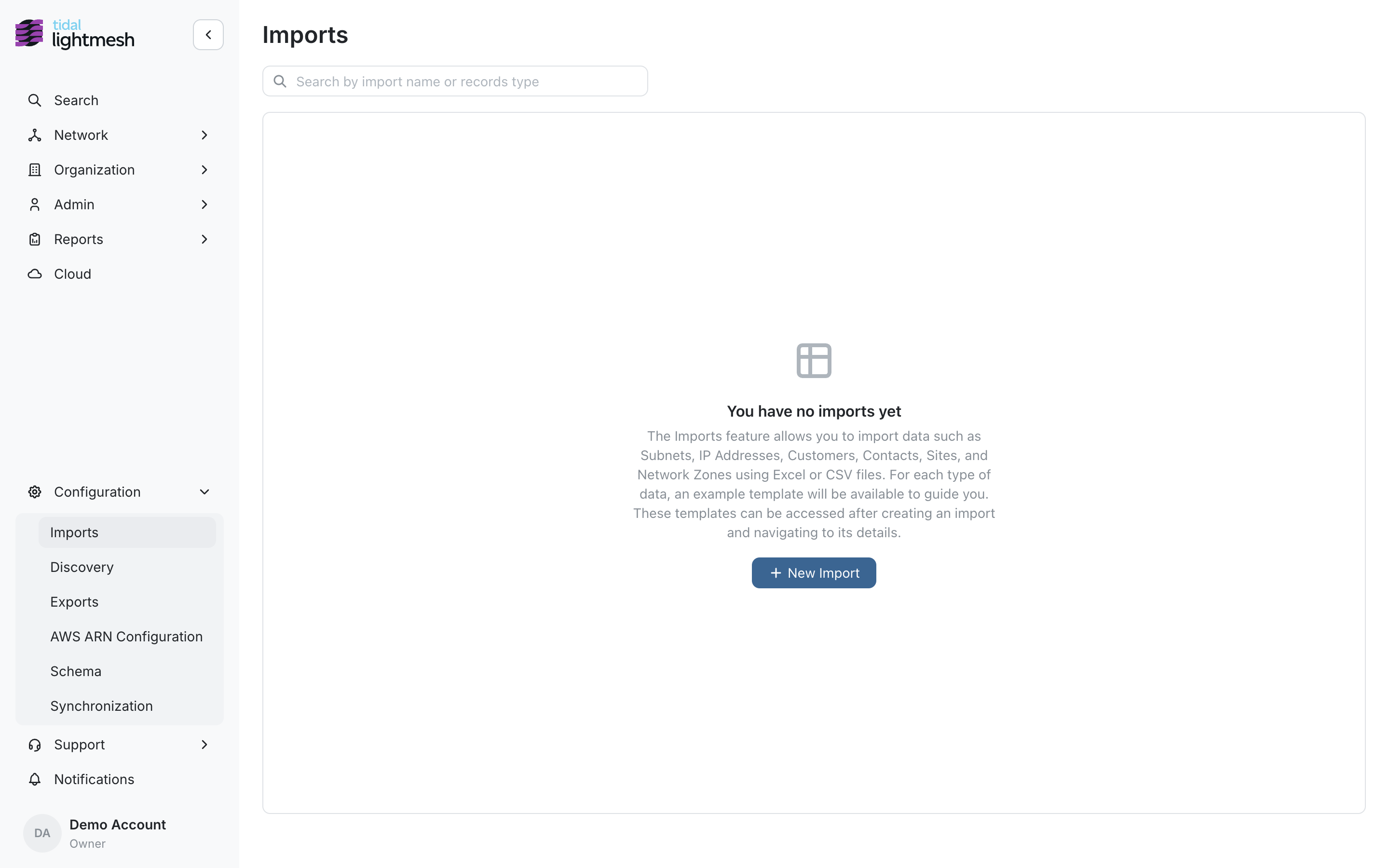
Click + New Import.
2. Choose type
Pick one or more cards — Subnets, IP Addresses, Customers, Contacts, Sites, Network Zones — then give the import a name.
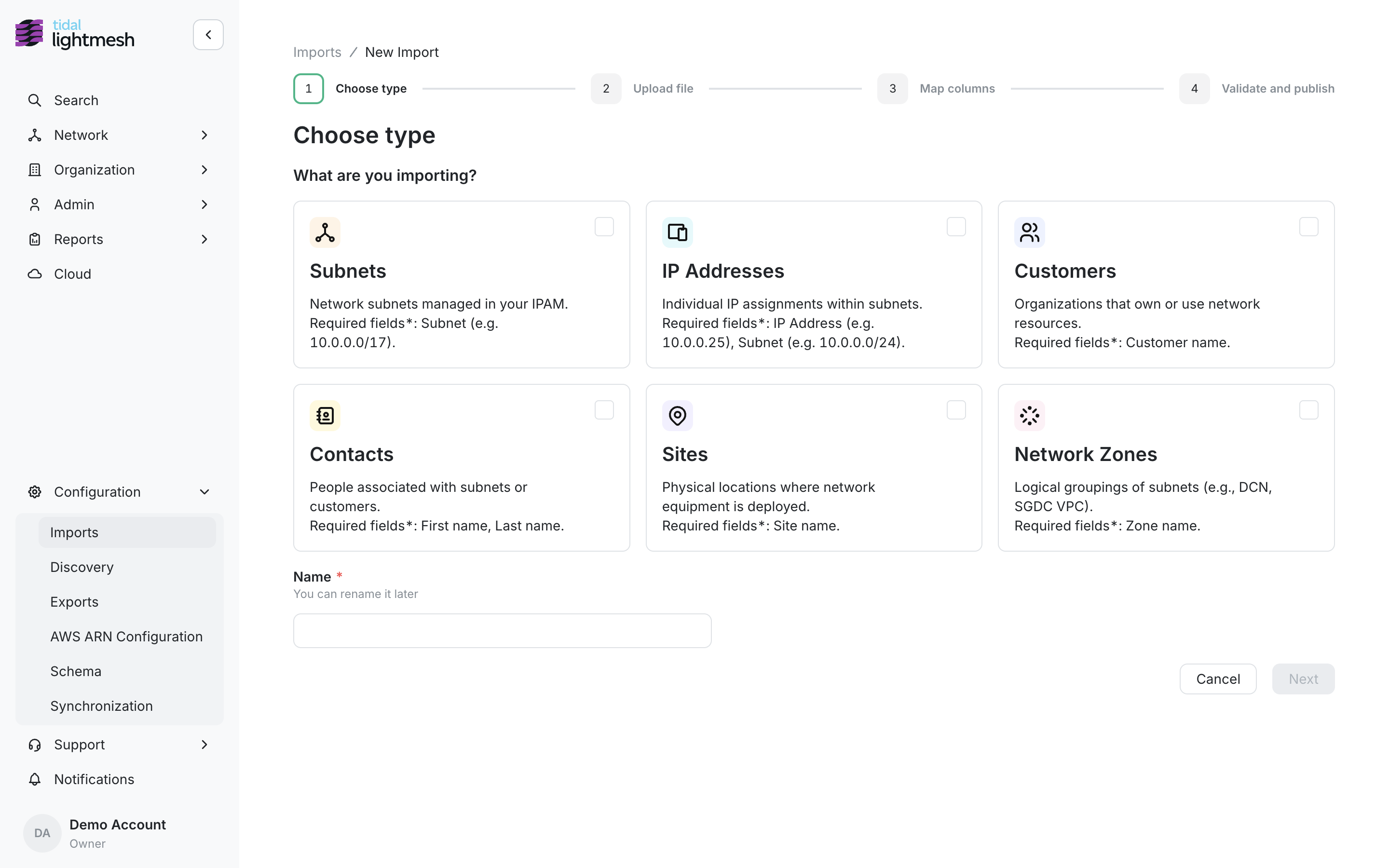
This walkthrough selects Subnets and names the import Guide demo — Subnets.
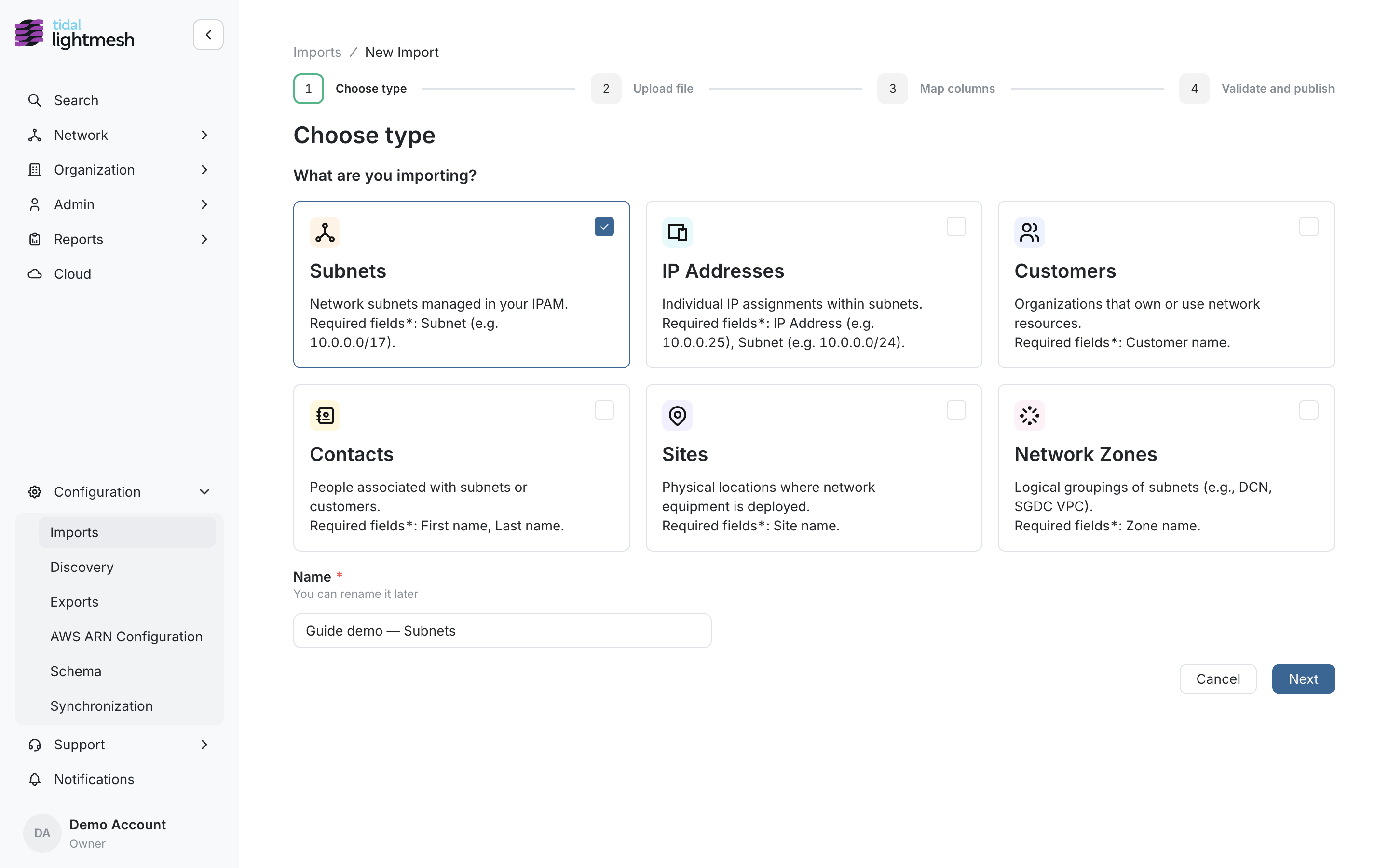
Click Next. LightMesh saves a draft at this point so you can leave and resume later.
3. Upload the file
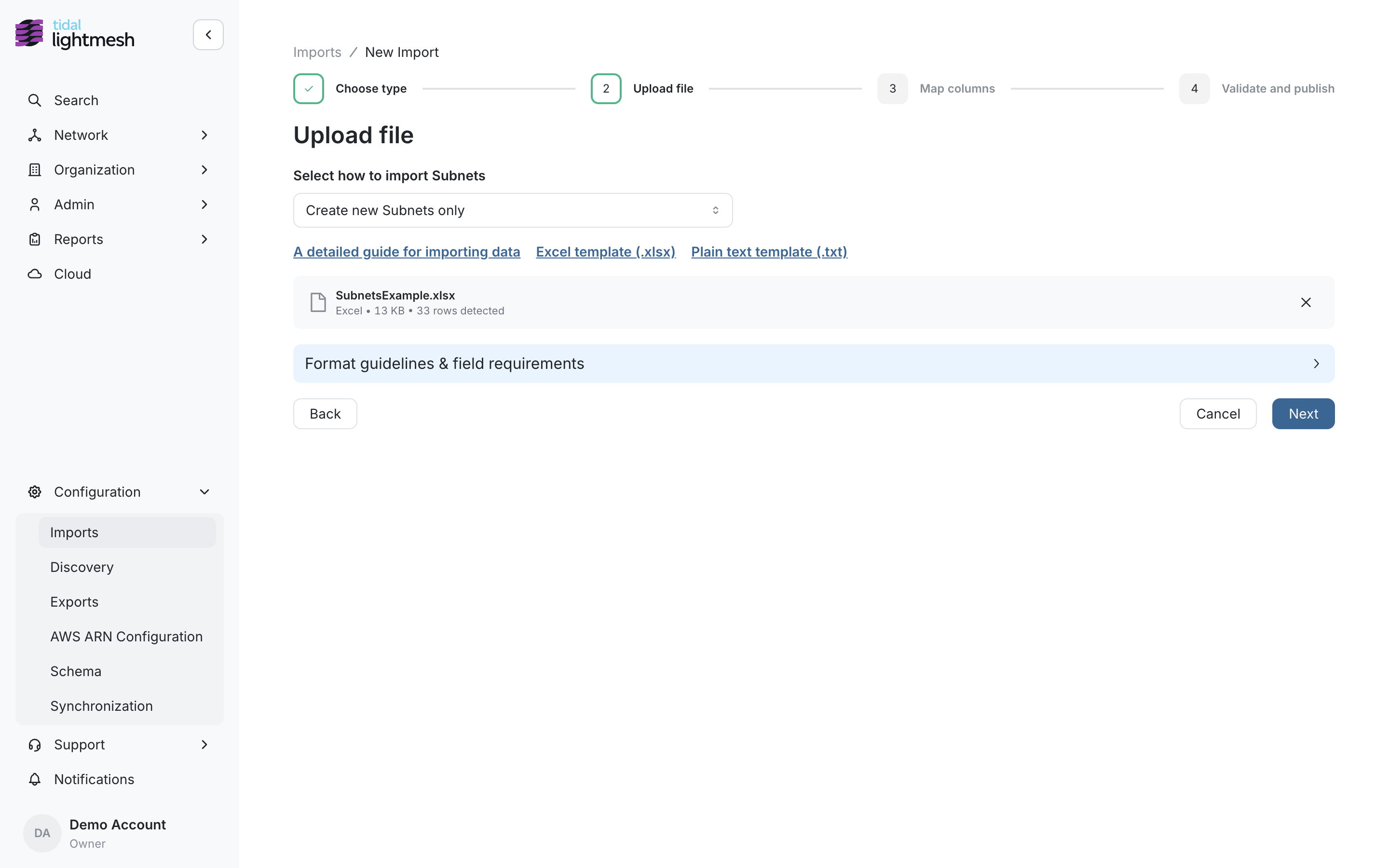
On Upload file:
- Choose how to import — for example Create new Subnets only, or create and update existing ones.
- Optionally download the Excel or plain-text template.
- Drop a file onto the dropzone, or click Browse files.
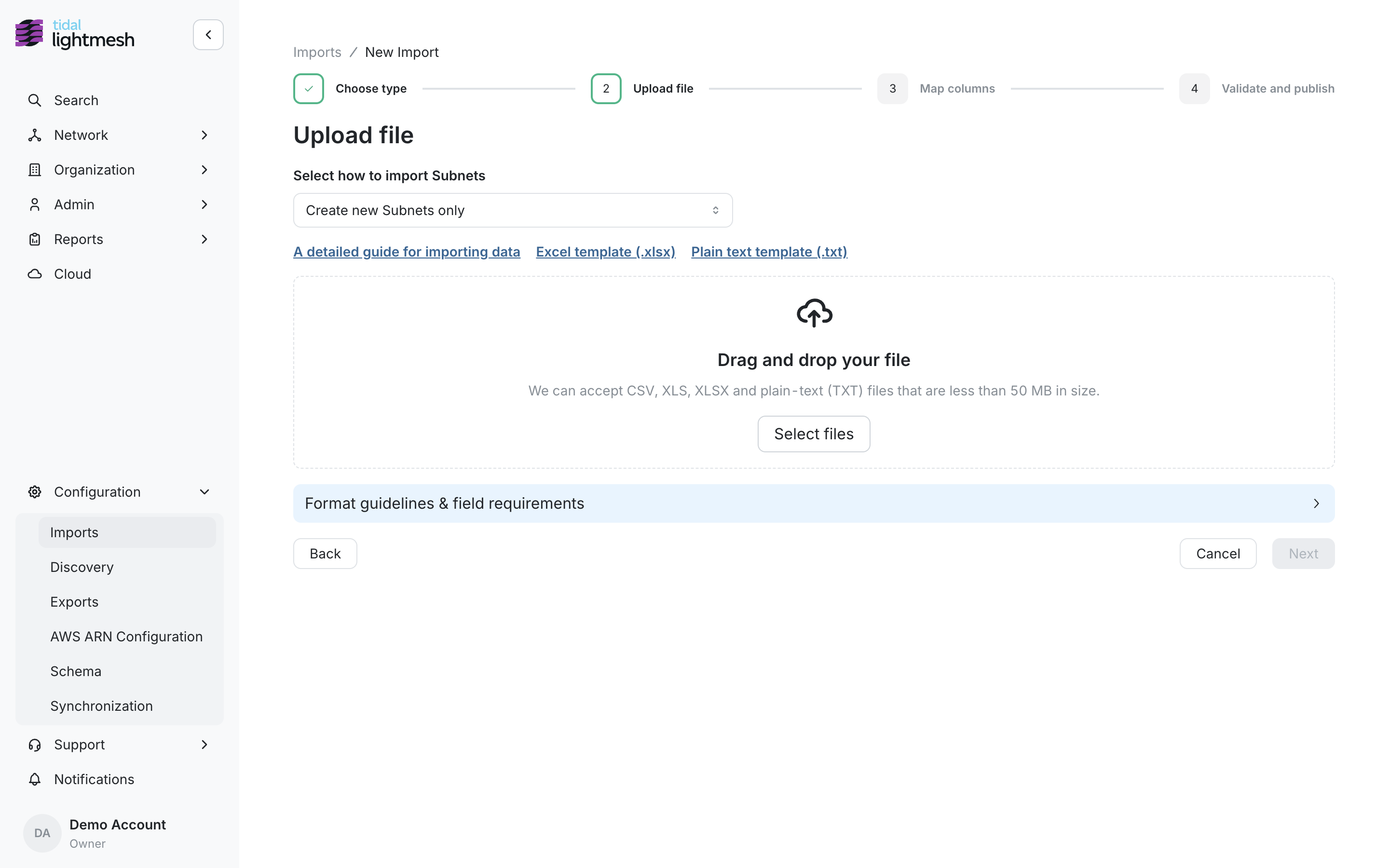
After the file is accepted, LightMesh shows the name, size, and how many rows it detected.
Draft in progress
If you stop on the upload step (or any later step) without publishing, the import remains a draft. You can return to Configuration > Imports and open it to continue, or discard it from the wizard.
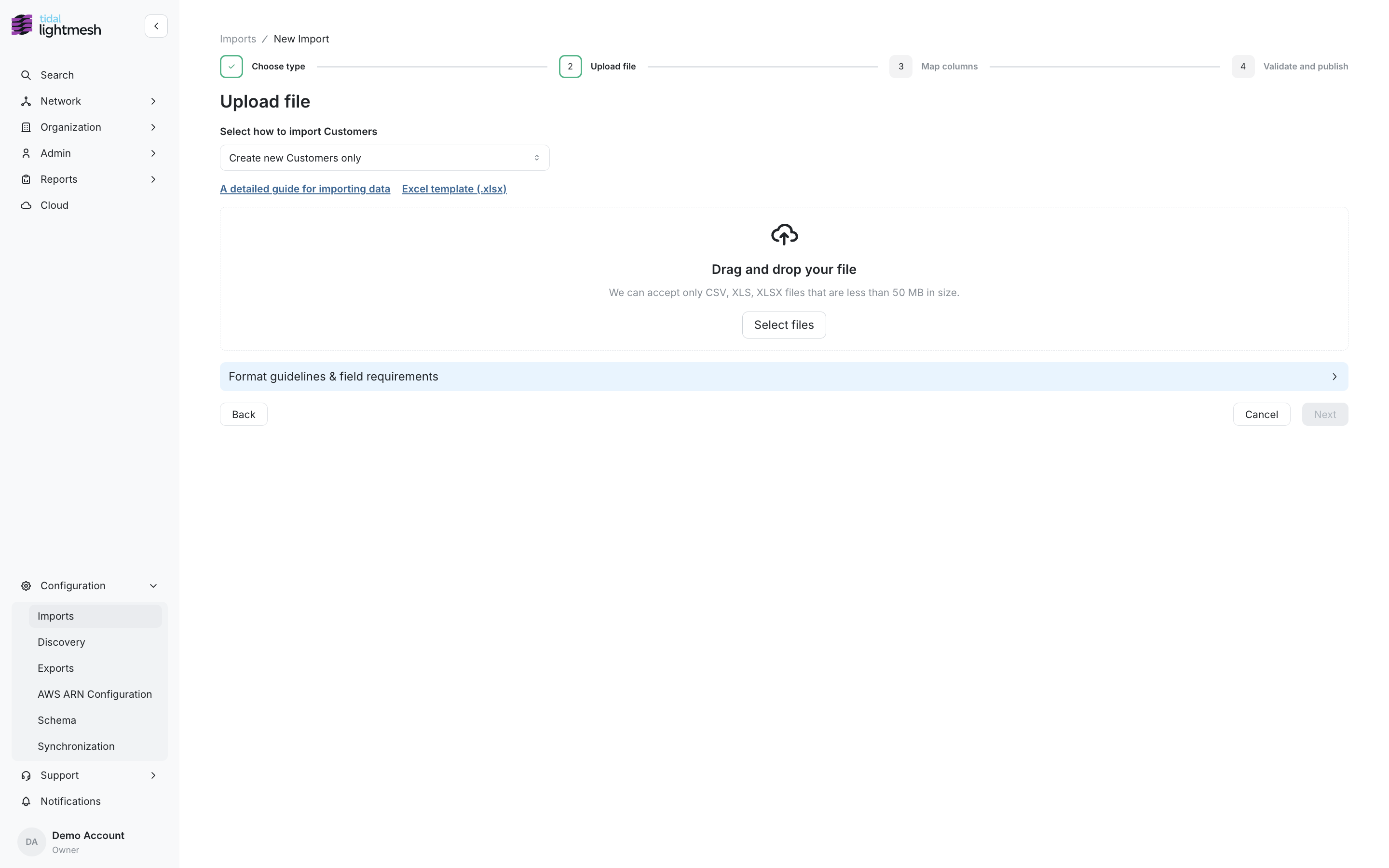
Click Next when the file is ready.
4. Map columns
LightMesh auto-maps headers it recognises. Required fields that are mapped show All required fields detected. Unmapped columns are skipped on publish.
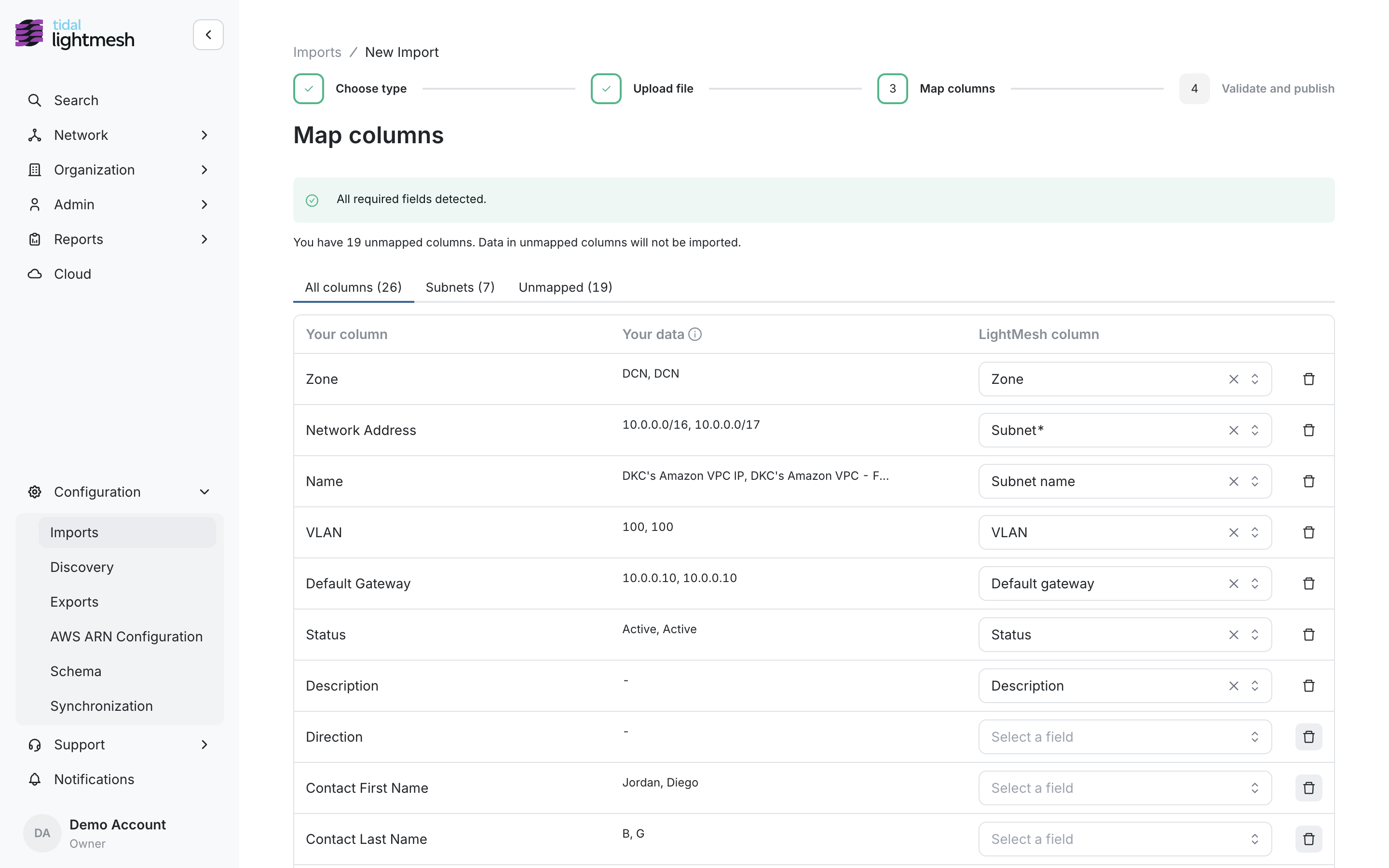
Use the All columns, type, and Unmapped tabs to review mappings. Change a LightMesh column with the dropdown, or remove a mapping you do not want. Click Next when required fields are mapped and there are no duplicate assignments.
5. Validate — success path
LightMesh uploads the rows and checks them (new, update, unchanged, duplicates in the file, unknown zones or sites, format errors). Issues are grouped so you can fix or exclude them.
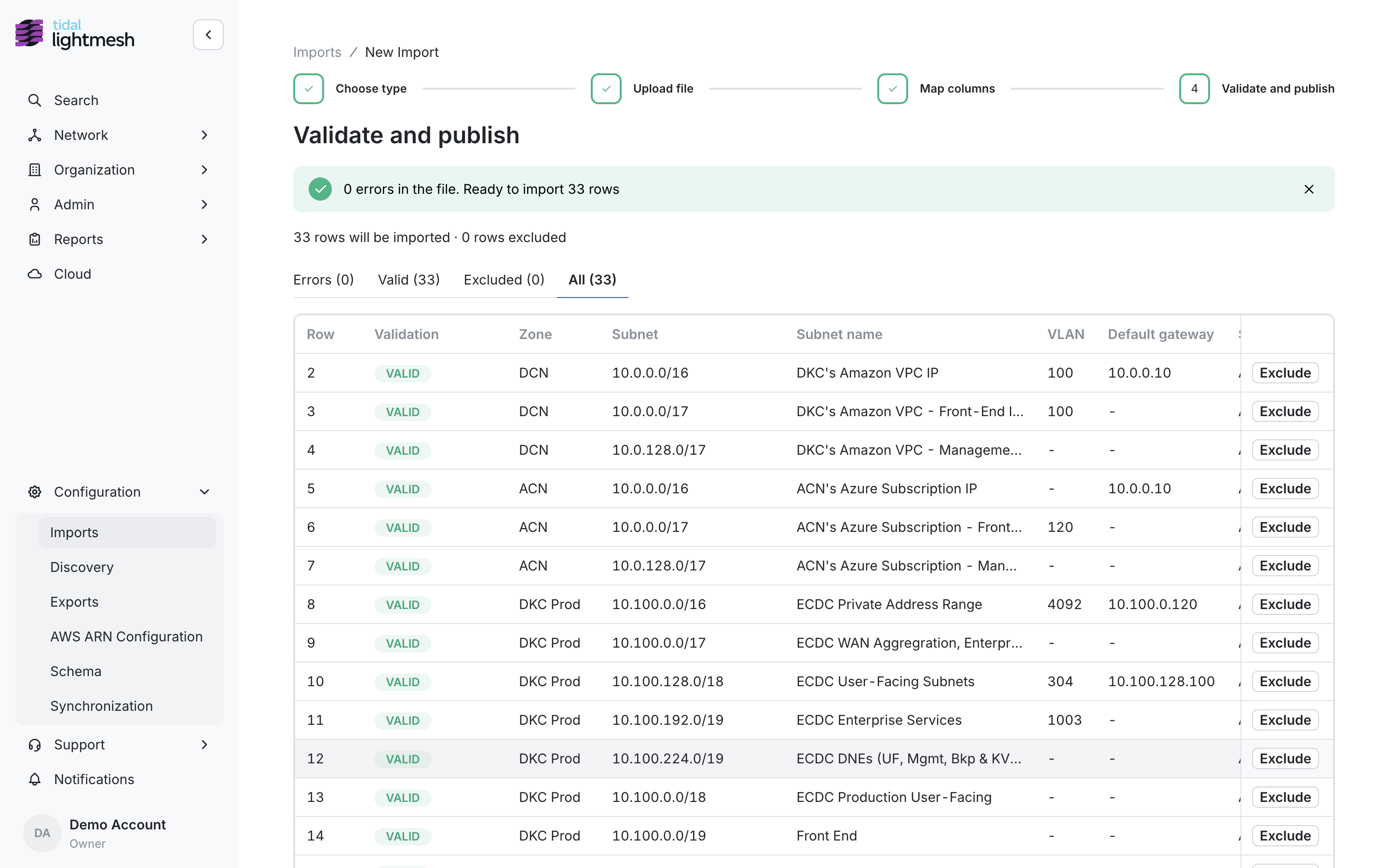
When there are 0 errors and at least one valid row, click Continue.
6. Validate — when there are errors
If anything blocks the import, a red banner appears: Found issues that block import. Resolve or exclude them to continue. Grouped issue cards (for example Invalid value) sit above the table. Continue stays disabled until every error row is fixed or excluded.
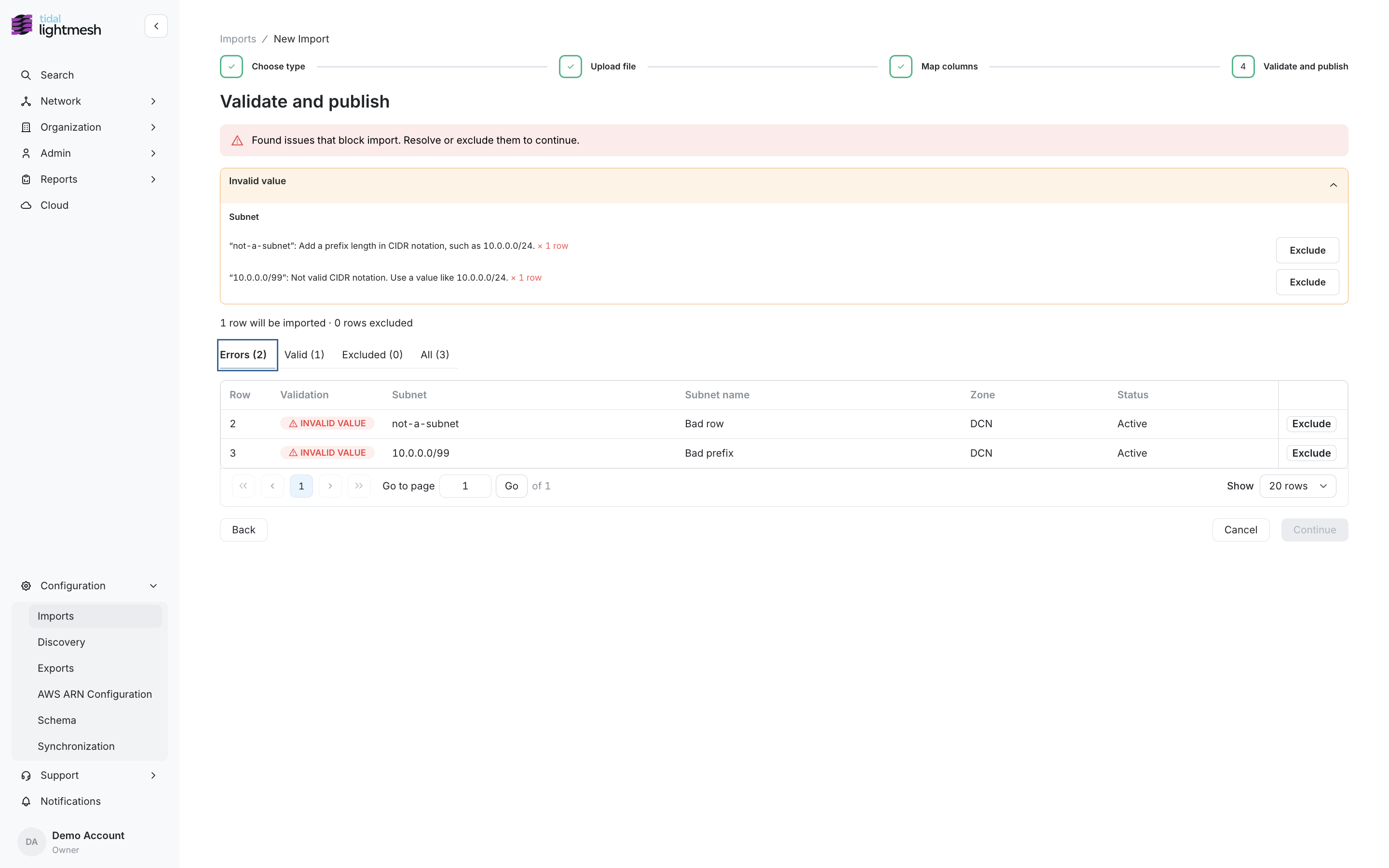
How to work through errors:
- Open the Errors tab to see only problem rows (each shows a badge such as INVALID VALUE).
- Read the grouped issue cards — they explain what is wrong and how many rows share the problem.
- Exclude a single row, or Exclude all for a group, if you want to publish the rest without that data.
- Or fix the spreadsheet, start a new import (or re-upload), and map again.
- Use Valid, Excluded, and All to confirm what will publish. The line under the issues (for example
1 row will be imported · 2 rows excluded) is the source of truth before you continue.
7. Summary — publish now or save for review
The summary shows how many rows will be created, updated, or left unchanged.
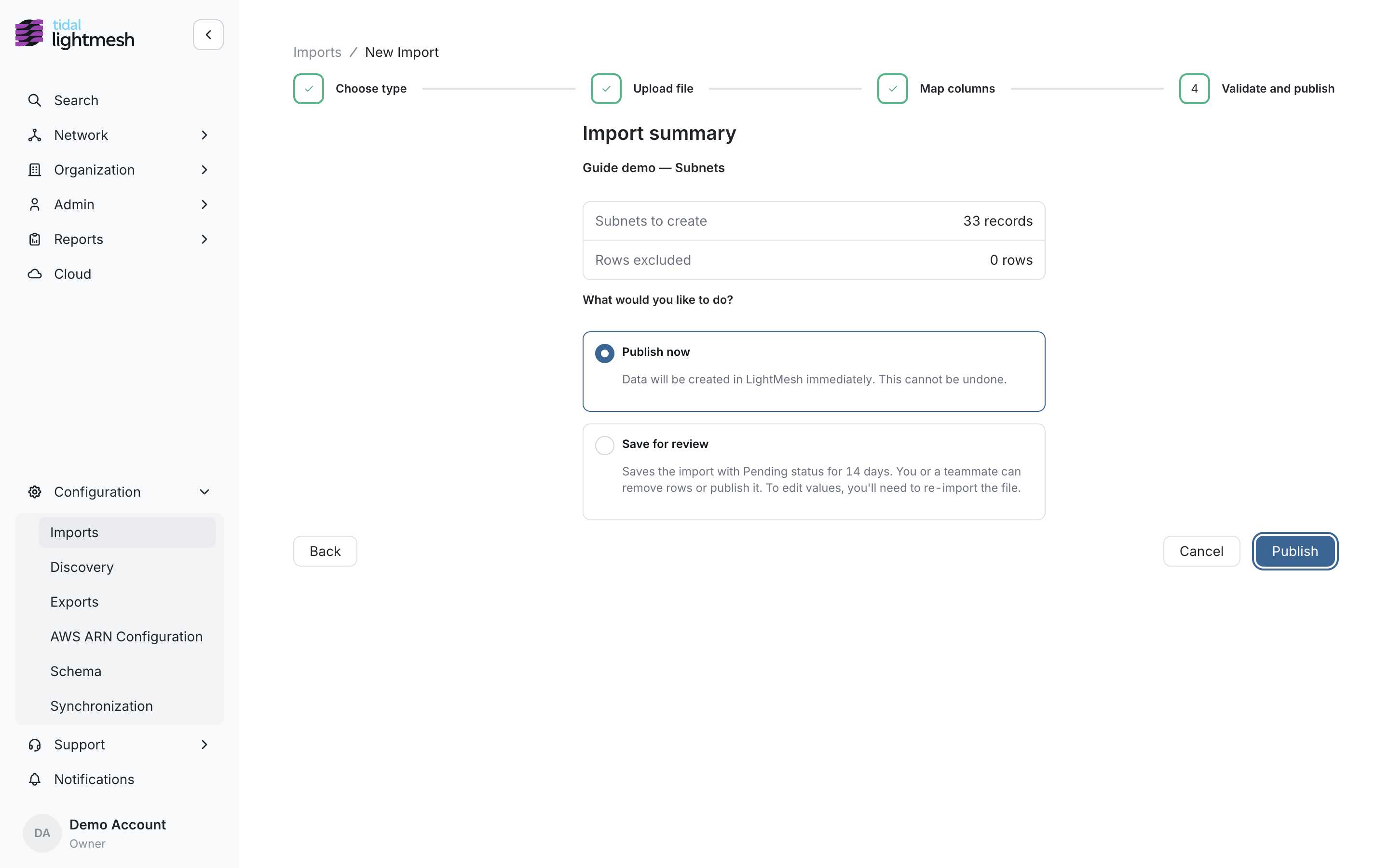
- Publish now — write the data immediately (cannot be undone from this screen).
- Save for review — keep the import Pending for 14 days. You or a teammate can exclude rows and publish later. To change values, re-import the file.
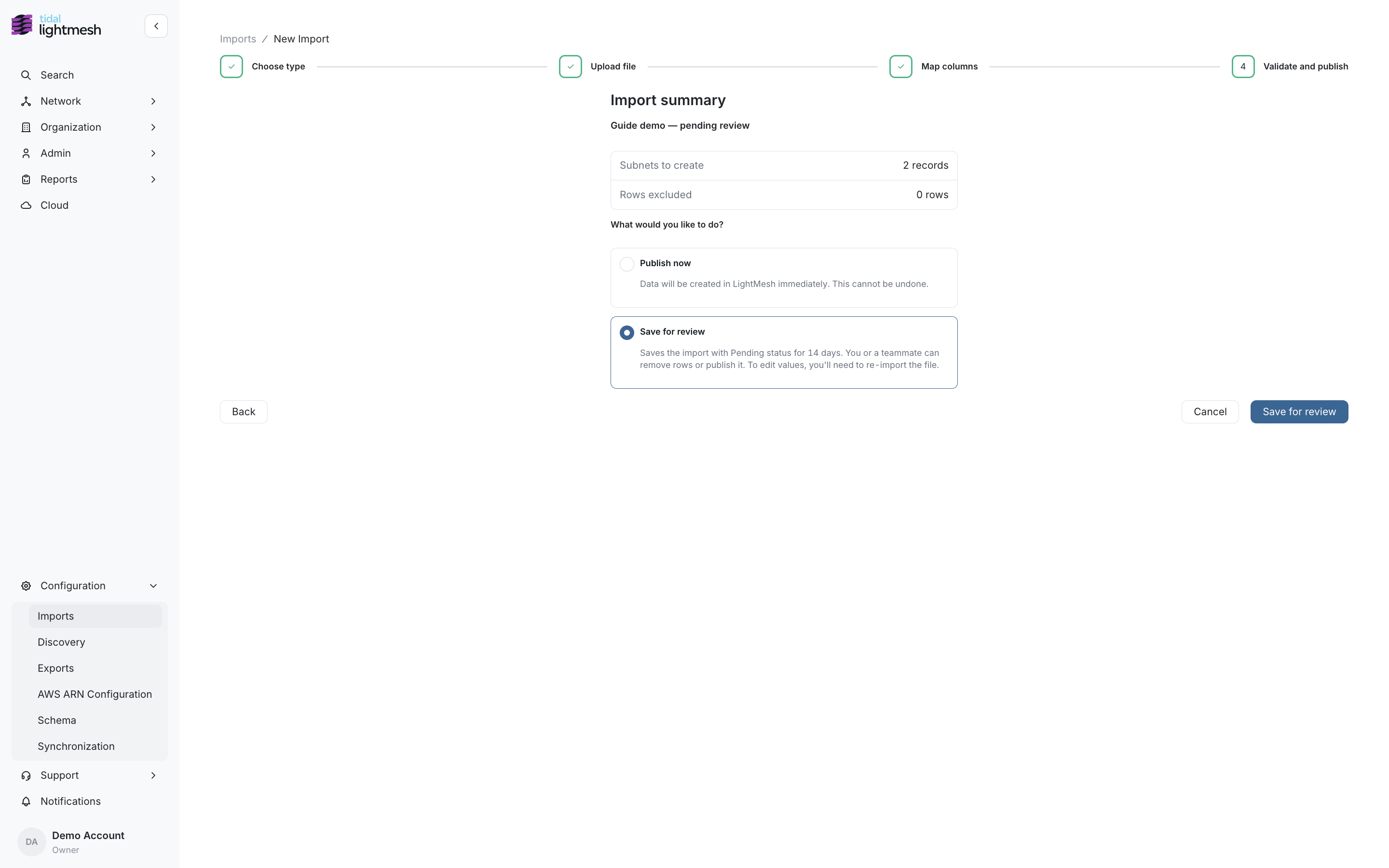
Related records named in the file (for example Network Zones on subnet rows) may still be created when you publish, even if you only selected Subnets on Choose type.
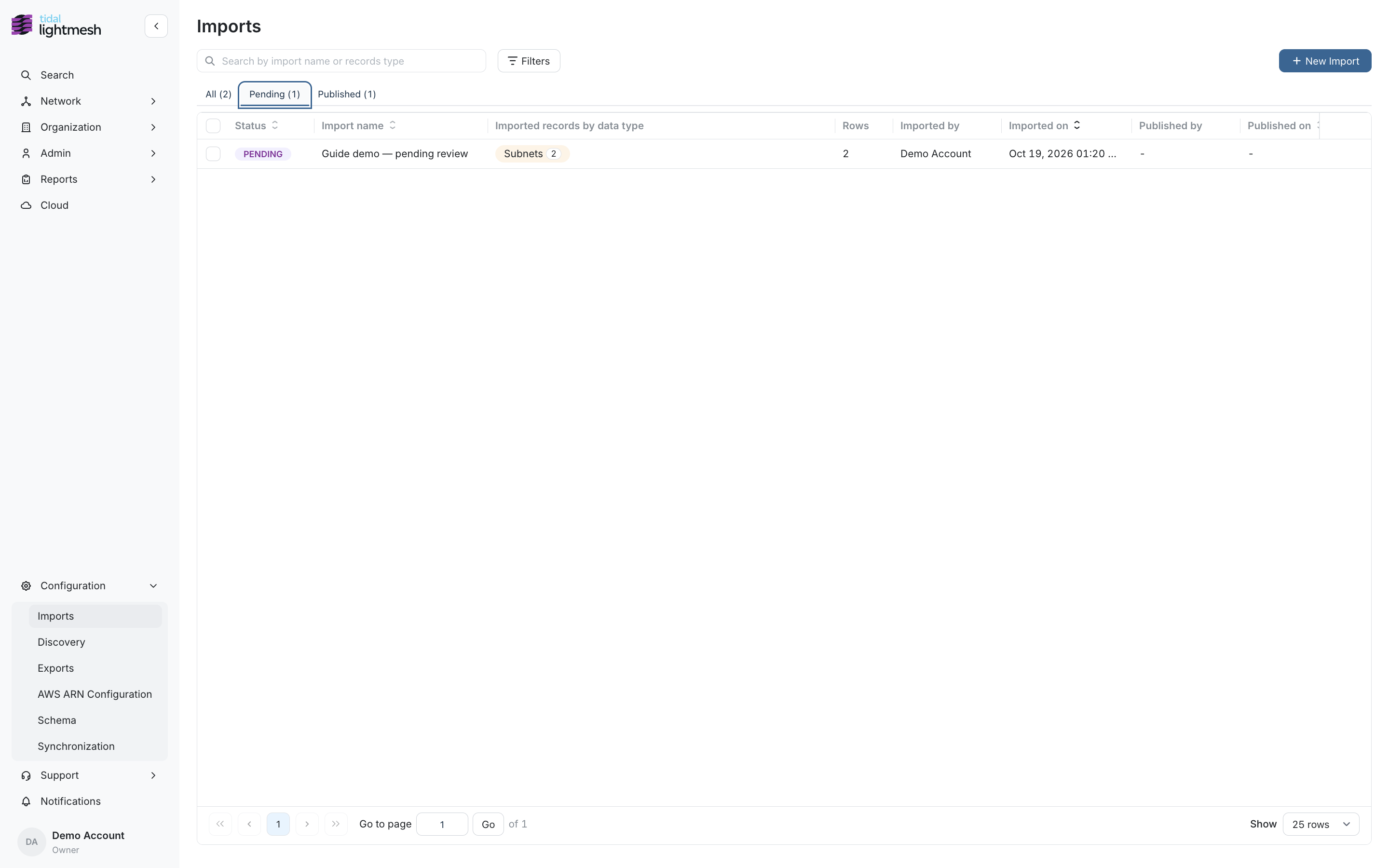
8. Pending (saved for review)
After Save for review, the import detail page shows status Pending. From here you can finish validation, exclude rows, and publish when ready.
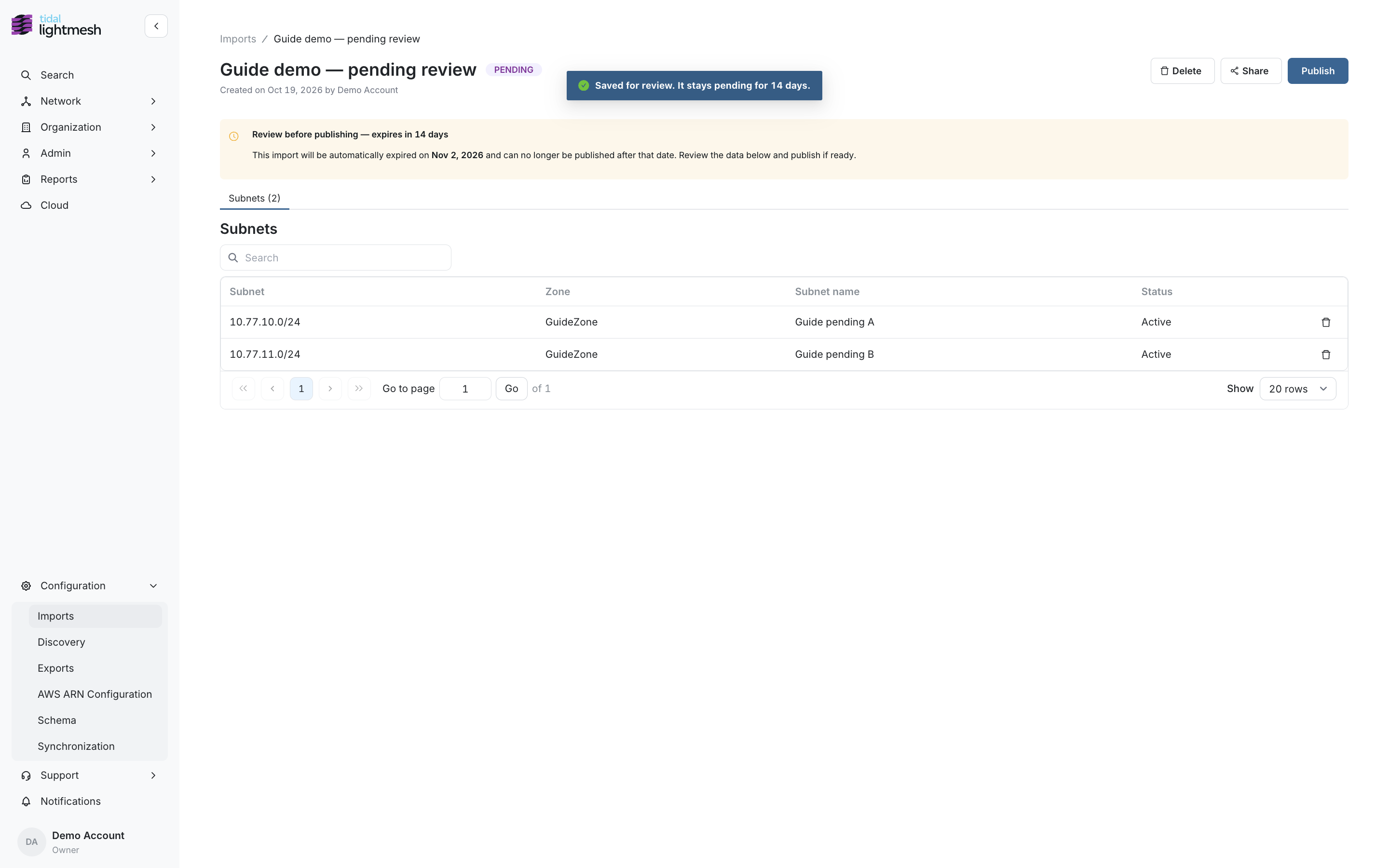
On the Imports list, open the Pending tab (or All) to find imports waiting for review.
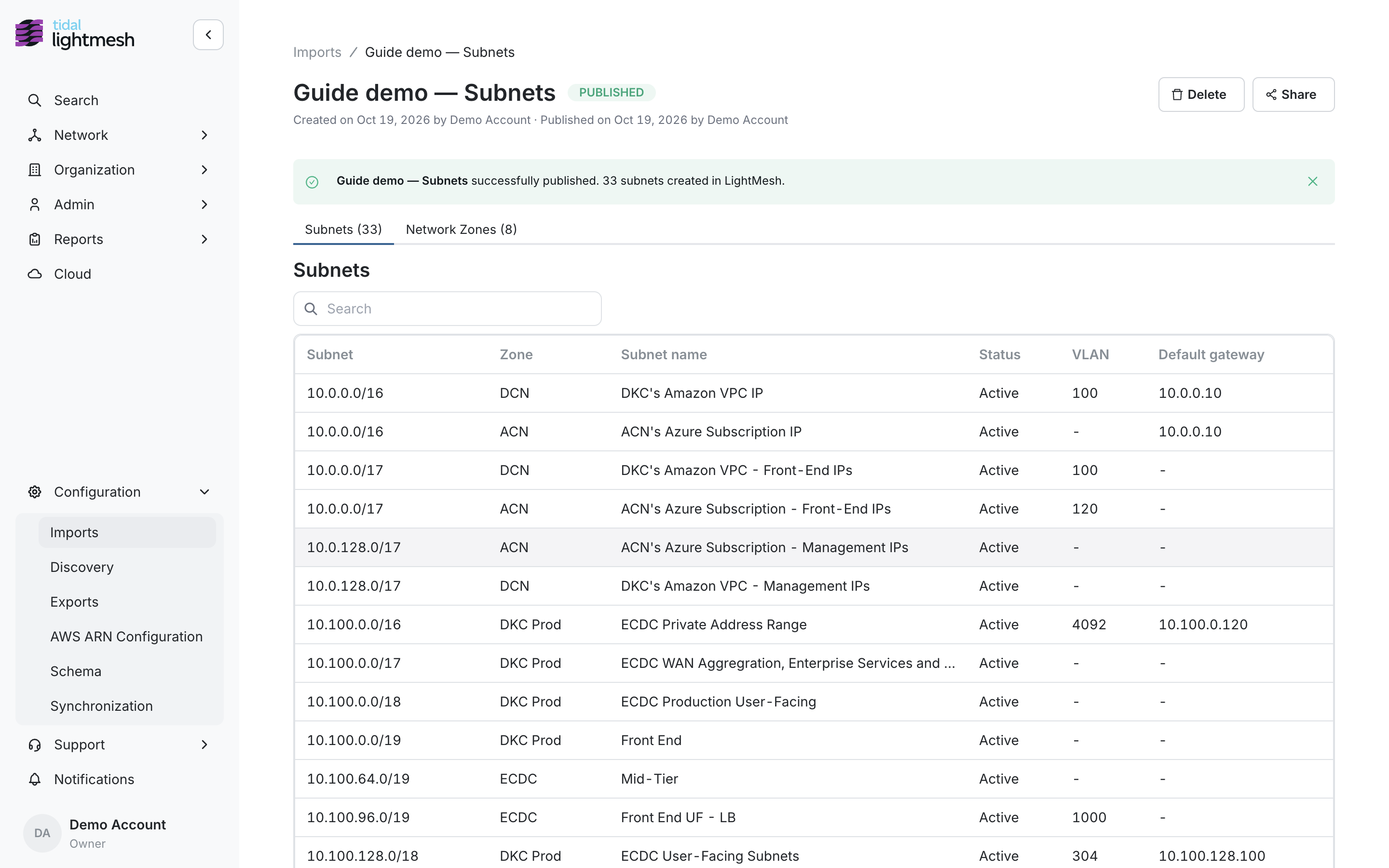
9. Published
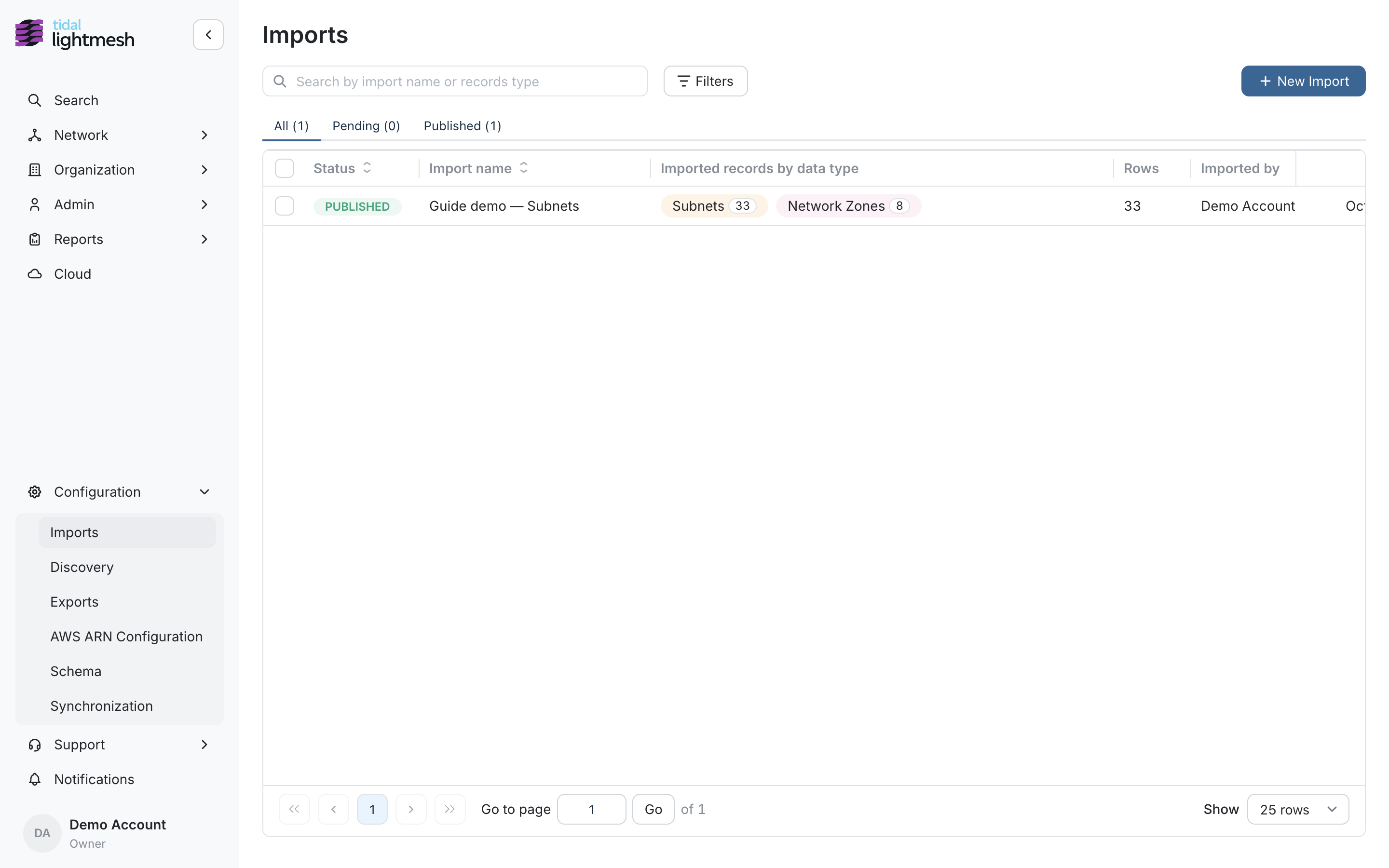
When publishing finishes you land on the import detail page with status Published and counts for what was written.
Tips
- Multiple types in one file: Select every type the spreadsheet covers on Choose type. LightMesh publishes dependents first.
- Create vs update: Matching is type-specific (for example Subnet + Zone for subnets).
- Plain text: Annotated
zone=lines and paste-friendly route output work on the same upload step as Excel and CSV. - Easy IP: Upload Easy IP exports without renaming headers. See Easy IP.
Per-type training pages
Short notes and required fields for each entity; each page points here for the wizard walkthrough: