Link or remove Microsoft sign-in
Microsoft
Microsoft sign-in lets you authenticate with your Microsoft personal account or work/school account (Azure AD / Entra ID). On LightMesh SaaS, you can link or remove Microsoft from Account → Sign-in Methods without contacting support.
See the Sign-in Methods overview for how to open the page.
Note: Personal Microsoft linking on this page is separate from organization Okta SSO and from self-hosted Entra ID admin setup.
When Microsoft appears
The Microsoft row is shown when:
- Microsoft login is enabled on your LightMesh deployment (
MicrosoftLoginEnabled), or - You have already linked Microsoft to your account.
If Microsoft is not configured on the deployment and you have not linked it yet, the row is hidden. Already-linked Microsoft stays visible even if the deployment later disables the login button for new users.
Link Microsoft
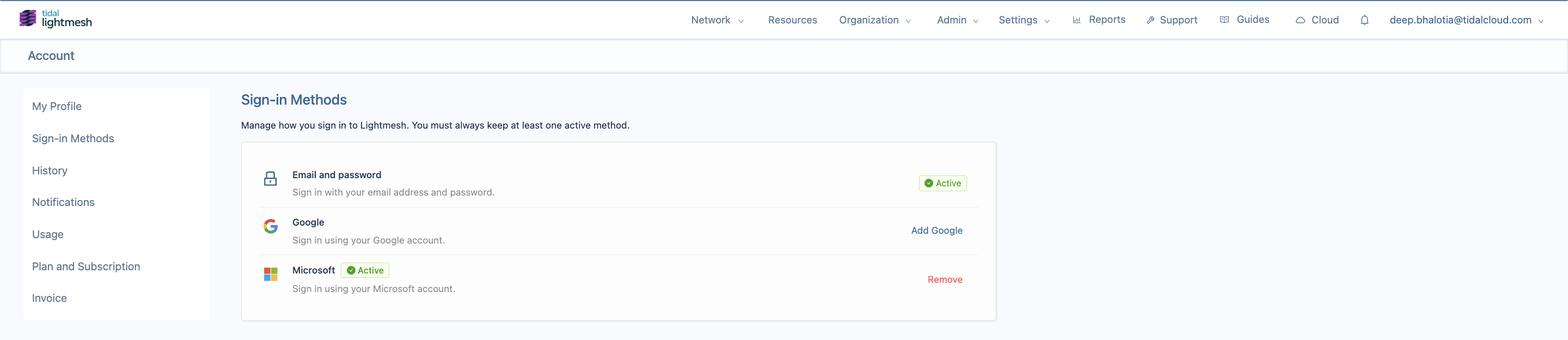
- Open Account → Sign-in Methods.
- On the Microsoft row, click Add Microsoft.
- Complete Microsoft’s OAuth sign-in flow in your browser.
- You return to Sign-in Methods with Microsoft marked Active.
Email notification
LightMesh sends an email when a new sign-in method is added to your account. The email includes a Manage sign-in methods button linking to /account/sign-in-methods.
If you did not add Microsoft yourself:
- Sign in with another method you control.
- Remove Microsoft if you have another active method.
- Reset your password if email/password is enabled.
- Contact support@tidalcloud.com.
Removing Microsoft
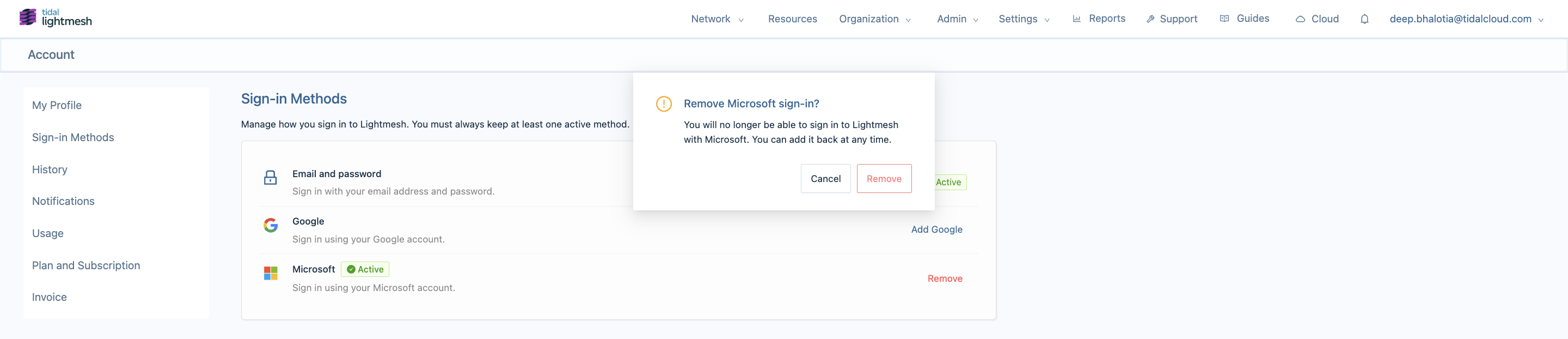
- On the Microsoft row, click Remove.
- Confirm in the dialog: You will no longer be able to sign in to Lightmesh with Microsoft. You can add it back at any time.
- Click Remove.
You cannot remove Microsoft if it is your last active sign-in method. In that case Remove is disabled and a tooltip explains:
You must keep at least one active sign-in method. Set a password or link another provider before removing this one.
Before removing Microsoft, set a password or link Google.
Account linking on first login
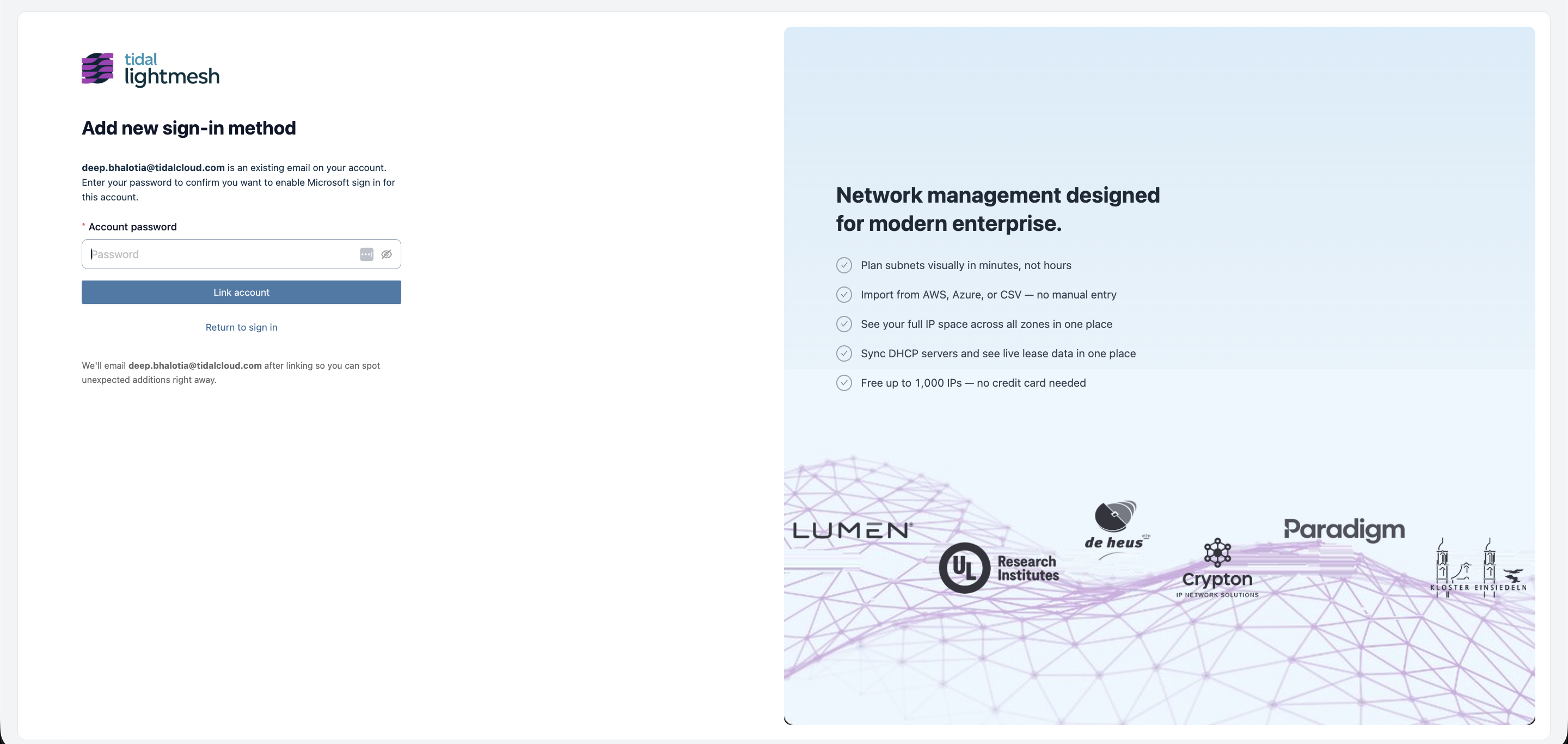
If you sign in with Microsoft using an email that already has a LightMesh account, LightMesh asks you to confirm linking instead of creating a duplicate account.
- Accounts with a password: Enter your existing LightMesh password on the
/link-accountconfirmation page. - Passwordless (SSO-only) accounts: Sign in with an existing linked provider shown on the page, or add Microsoft later from Sign-in Methods after signing in with your current method.
Provider not available
If Microsoft is not enabled on your deployment, you may see:
This sign-in provider is not configured on this deployment. Contact your administrator to enable it.
Contact your administrator or Tidal support if you expected Microsoft to be available.