Sync Microsoft DHCP into LightMesh using the Windows Discovery Agent
DHCP Discovery via Desktop (GUI)
DHCP discovery is a feature of the LightMesh Windows Discovery Agent. The agent runs on your Windows DHCP server, collects scope and lease data through Microsoft DHCP PowerShell cmdlets, caches it locally, and syncs it to LightMesh. After the first successful sync, LightMesh shows DHCP servers, scopes, leases, lease history, and DHCP-linked IP address state next to your IPAM data.
Windows Server Core: Use the dedicated DHCP Discovery on Windows Server Core guide. Server Core requires the headless zip (not the desktop MSI) and PowerShell service registration instead of the in-app dashboard.
Prerequisites
On the Windows machine where you install the agent:
-
Operating system: 64-bit Windows (x86_64). Windows Server 2016 or later is recommended for production DHCP collection.
-
DHCP PowerShell module: The Microsoft DHCP cmdlets the agent calls must be available on that server:
IPv4
Get-DhcpServerv4ScopeGet-DhcpServerv4Lease(per scope)Get-DhcpServerv4Reservation(per scope)Get-DhcpServerv4ExclusionRange(per scope)Get-DhcpServerv4OptionValue(per scope)Get-DhcpServerv4Failover(once per cycle)
IPv6
Get-DhcpServerv6ScopeGet-DhcpServerv6Lease(per prefix)Get-DhcpServerv6Reservation(per prefix)Get-DhcpServerv6ExclusionRange(per prefix)Get-DhcpServerv6OptionValue(per prefix)
-
Permissions: Local administrator rights to install, uninstall, or control the Windows service (expect a UAC prompt). The service itself can run under a configured service account after installation.
-
Network: Outbound HTTPS from the DHCP server to your LightMesh URL (see examples below). The server must resolve and reach that host.
-
Disk: Write access for the SQLite database file and agent log files (default paths are under the agent install directory).
LightMesh URL examples
Set Base URL in the agent to the same hostname you use in the browser, without a trailing path such as /graphql. Examples:
- SaaS:
https://next.lightmesh.com - Self-hosted:
https://mylightmesh.domain.com(replace with your tenant hostname)
Who can create API keys and download the agent
Sign in to LightMesh as a user with the Owner or Administrator application role. Those roles can open Admin > API Keys in the sidebar to create keys and Support > Downloads to download the Windows Discovery Agent. If your organization uses custom roles, use whichever role your admin assigns for those menus.
1. Create a Discovery Agent API key
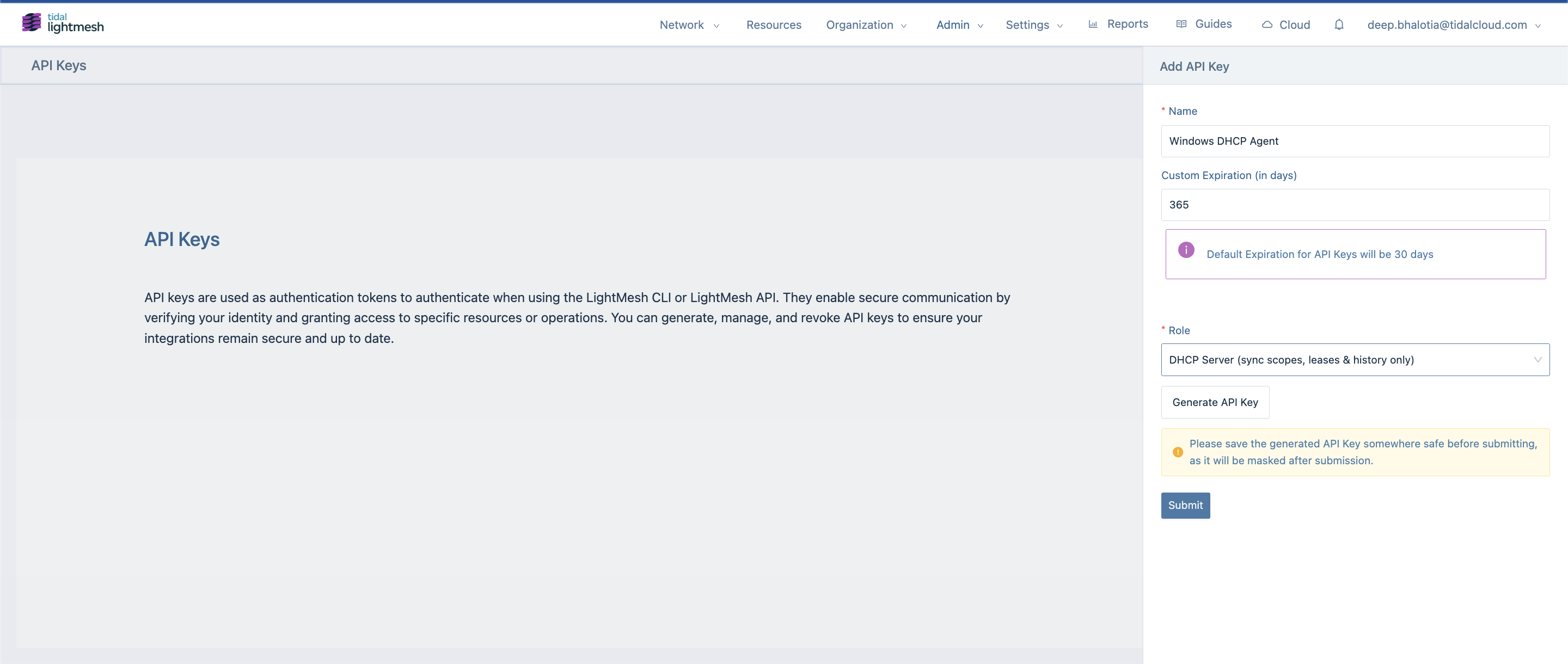
- In the sidebar, go to Admin > API Keys and add a new API key.
- In the Add API key panel, enter a Name (for example
Windows Discovery Agent) and, optionally, a Custom Expiration (in days). Keys expire after 30 days by default. - Set Role to Discovery Agent (DHCP, ping sweep & agent sync only) so the key can sync DHCP, register the agent, and upload ping sweep results without full tenant API access.
- Click Generate API Key, copy the key, then click Create API key.
Store the key securely; it is masked after you submit the form. You will paste it into the agent as the API token.
2. Download the Windows Discovery Agent
- In the sidebar, go to Support > Downloads.
- On the Windows Discovery Agent card, expand System requirements if you need OS, installation, permissions, DHCP, ping sweep, network, or disk details for your environment.
- Under Windows installer (.msi), click Download MSI.
Use the MSI for full Windows Server (with Desktop Experience), Windows 10, or Windows 11. Do not use the MSI as the primary install on Windows Server Core; use the Server Core package (.zip) in the Windows Server Core guide instead.
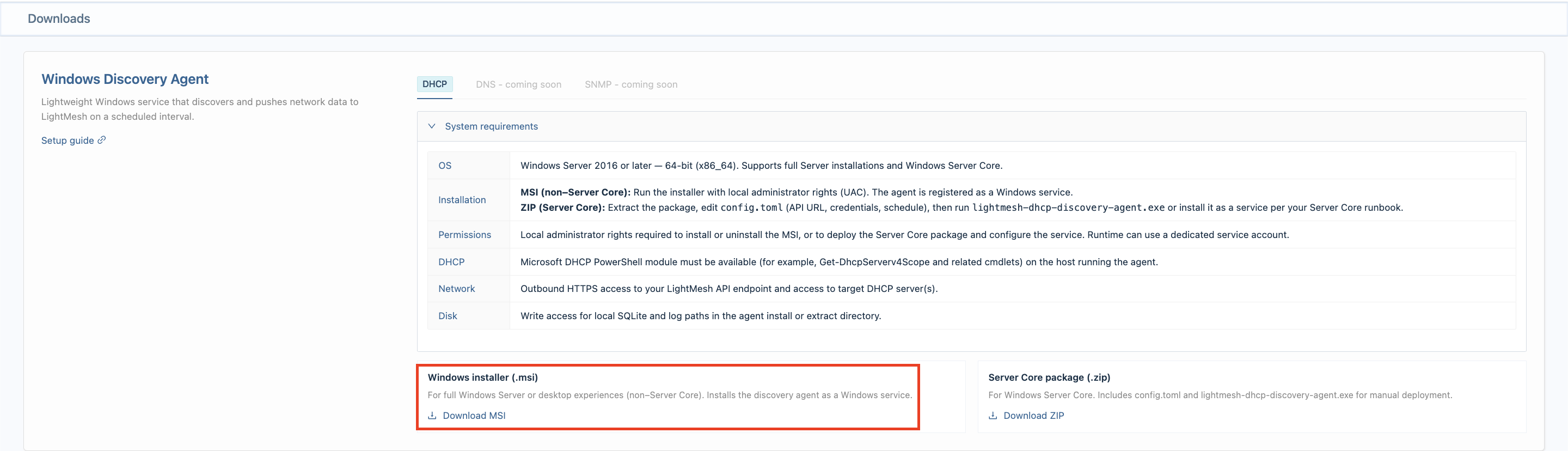
The same card offers the Server Core package (.zip) next to the MSI for headless deployments. Both packages support DHCP and Ping Sweep; DNS and SNMP are listed as coming soon.
Optional direct download (same MSI as Download MSI):
https://get.lightmesh.com/lightmesh-discovery-agent-win-64-latestRun the MSI on the Windows DHCP server that will run collection.
3. Open the LightMesh Discovery Agent
Run the discovery agent on Windows as Administrator:
- Right-click
lightmesh-discovery-agent.exe. - Click Run as administrator.
Administrator rights are required to install and register the Windows service. Without them, Register Service on the Dashboard may fail or prompt for elevation.
The app opens Dashboard, Configuration, Logs, and Help & Setup.
If the window fails to open, look for startup_error.log next to the executable.
4. Configure the agent
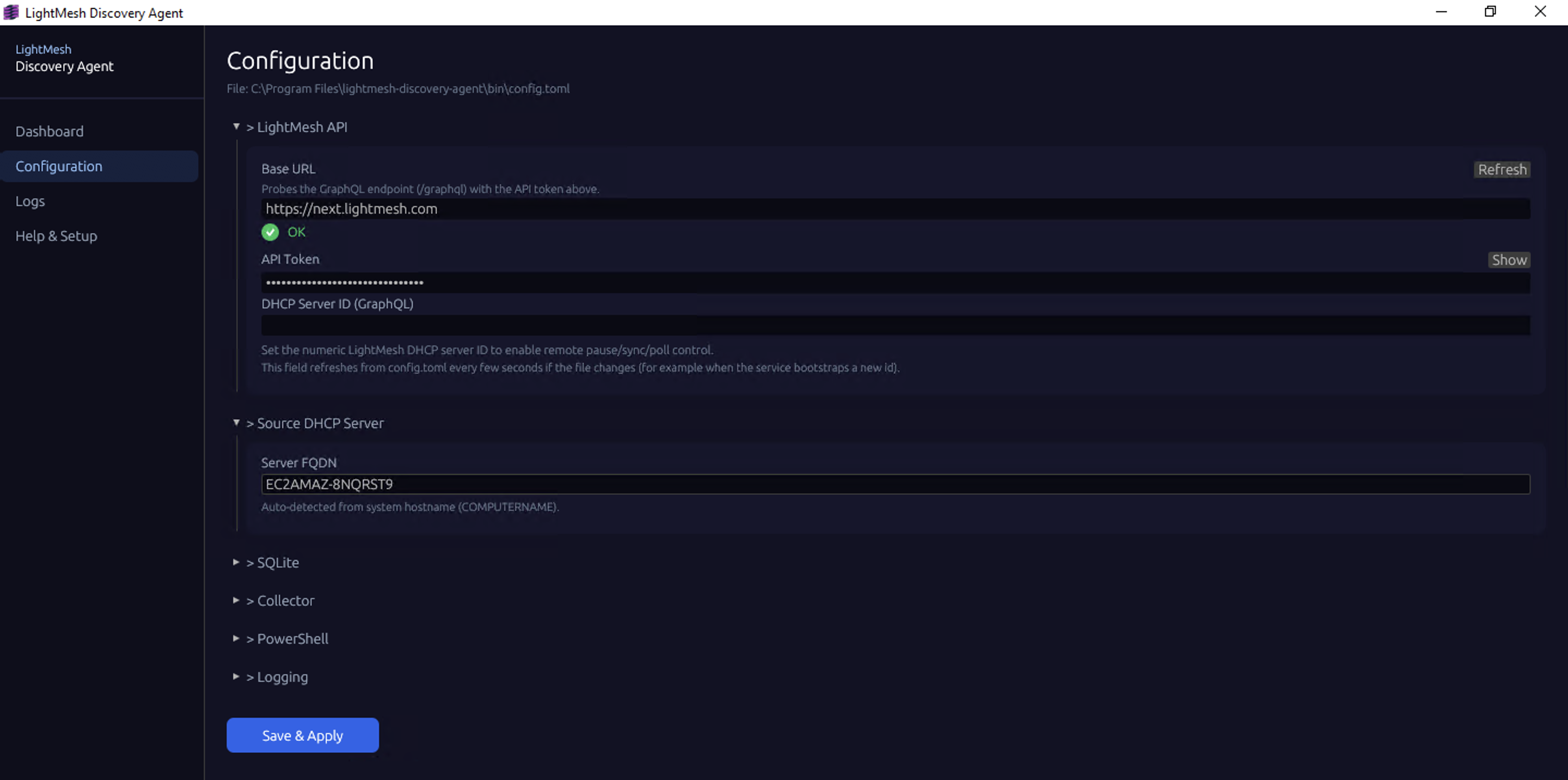
Open Configuration. The page header shows the path to config.toml (for example C:\Program Files\lightmesh-discovery-agent\bin\config.toml).
LightMesh API
Expand LightMesh API and set:
- Base URL: Your LightMesh URL (see examples above).
- API Token: The Discovery Agent API key from step 1.
The DHCP Server ID is no longer set here. The agent fills it in automatically on the first sync, and you can review it under DHCP settings on the Dashboard (see step 5).
Source DHCP Server
Server FQDN is the DHCP server the agent collects from. It is auto-detected from the machine’s hostname (COMPUTERNAME), so leave it as is when the agent runs on the DHCP server itself.
Live connectivity check (Base URL)
The Base URL field includes a built-in connectivity probe. After you enter Base URL and API Token, the agent automatically tests https://<host>/graphql using the values in the form; you do not need to click Save changes first.
- Checking…: probe in progress (spinner).
- OK with a green checkmark: HTTP 2xx and no GraphQL errors; the URL and token can reach LightMesh.
- Failed with a red cross: a short summary plus hints (DNS, TCP, TLS, proxy, timeout, HTTP 401/403/404/5xx, or GraphQL application errors).
Use Refresh on the Base URL row to run the probe again after you change credentials or fix network issues.
Run this check before Register Service on the Dashboard so the Windows service starts with a valid LightMesh connection.
Collector: poll interval
Expand Collector to see Collector ID, Host Name, Agent Version, and Poll Interval (secs). Poll Interval (secs) is how often the Windows service wakes up, runs DHCP collection, and pushes changes to LightMesh. The default is 300 (five minutes). Larger intervals reduce load; smaller intervals refresh LightMesh sooner.
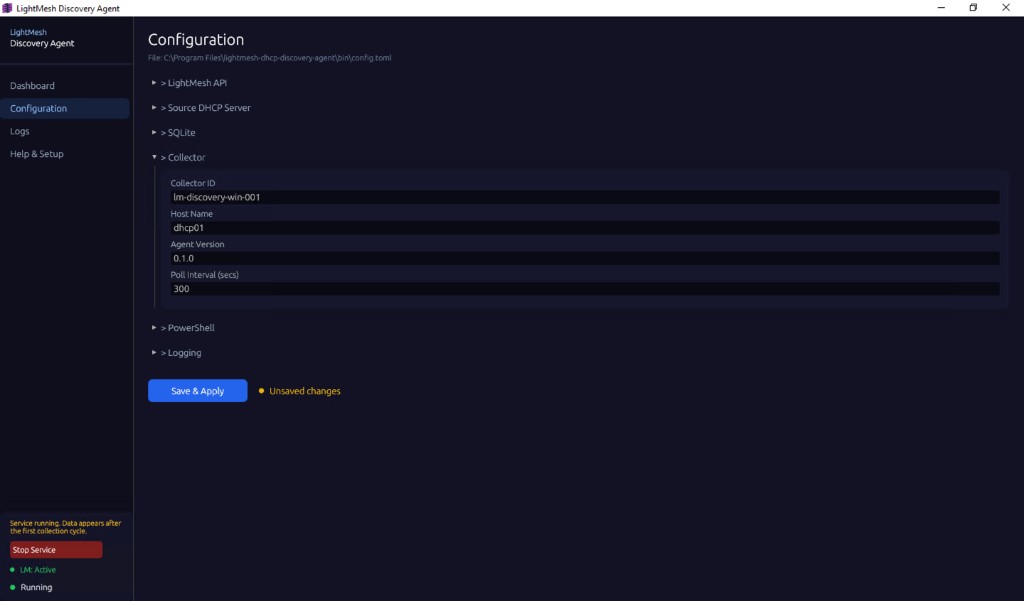
This setting works together with Polling Interval on the DHCP server detail page in LightMesh (for example Every 5 min). The Dashboard’s LightMesh Controls section shows the Effective Polling value the agent is using and where it came from.
SQLite: queue batch size and retries
Expand SQLite:
- Database Path: Local SQLite file used as cache and outbound queue.
- Queue Batch Size: Maximum number of queued entities sent per batch to LightMesh during sync. Increase it on busy servers with large lease counts if your deployment supports larger payloads; decrease it if you hit timeouts or payload limits.
- Max Send Attempts, Retry Base (secs), Retry Max (secs): Control retries when LightMesh is unreachable or returns errors.
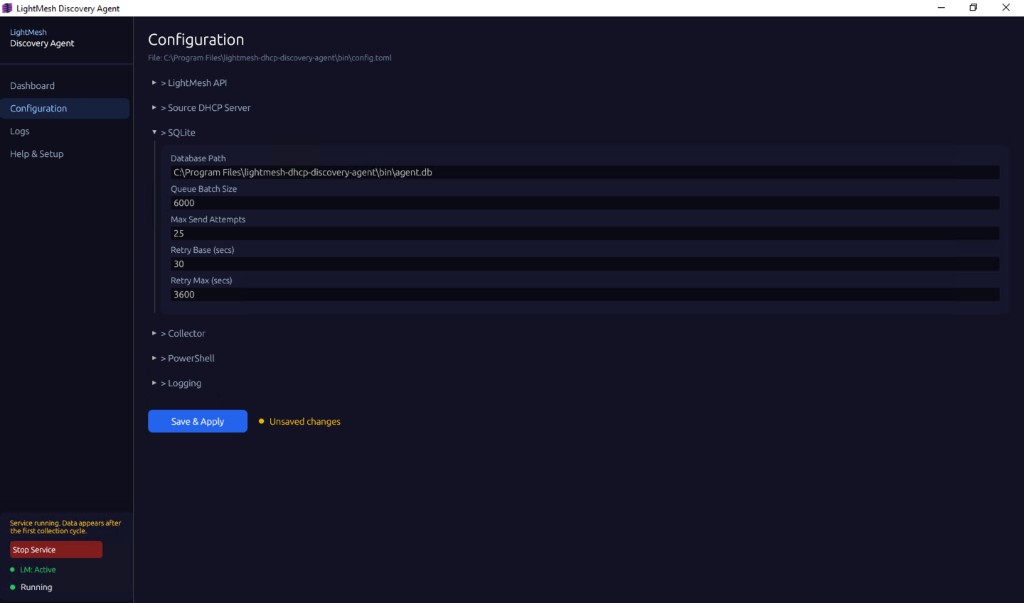
Click Save changes after you enter your settings so they are written to config.toml. Discard reverts any unsaved edits.
5. Register and start the Windows service
Before you click Register Service on the Dashboard, confirm in Configuration that Base URL and API Token are set correctly and that you clicked Save changes. Registering the service before those values are saved can leave the service running without a valid LightMesh connection.
On the Dashboard:
- Click Register Service in the top-right corner. This is a one-time setup and prompts for elevation (UAC).
- Select the DHCP tab. If DHCP collection is off, click Start DHCP.
Once the service is running, the header shows Sync now (run one collection immediately) and Stop DHCP (turn DHCP collection off). The sidebar status card shows whether the service is Running and whether DHCP and Ping Sweep are on.
You can also register and start the service from an elevated PowerShell prompt:
.\lightmesh-discovery-agent.exe --service-install
.\lightmesh-discovery-agent.exe --service-start
For a one-off foreground run:
.\lightmesh-discovery-agent.exe --service-runAfter the first collection cycle, the DHCP tab shows:
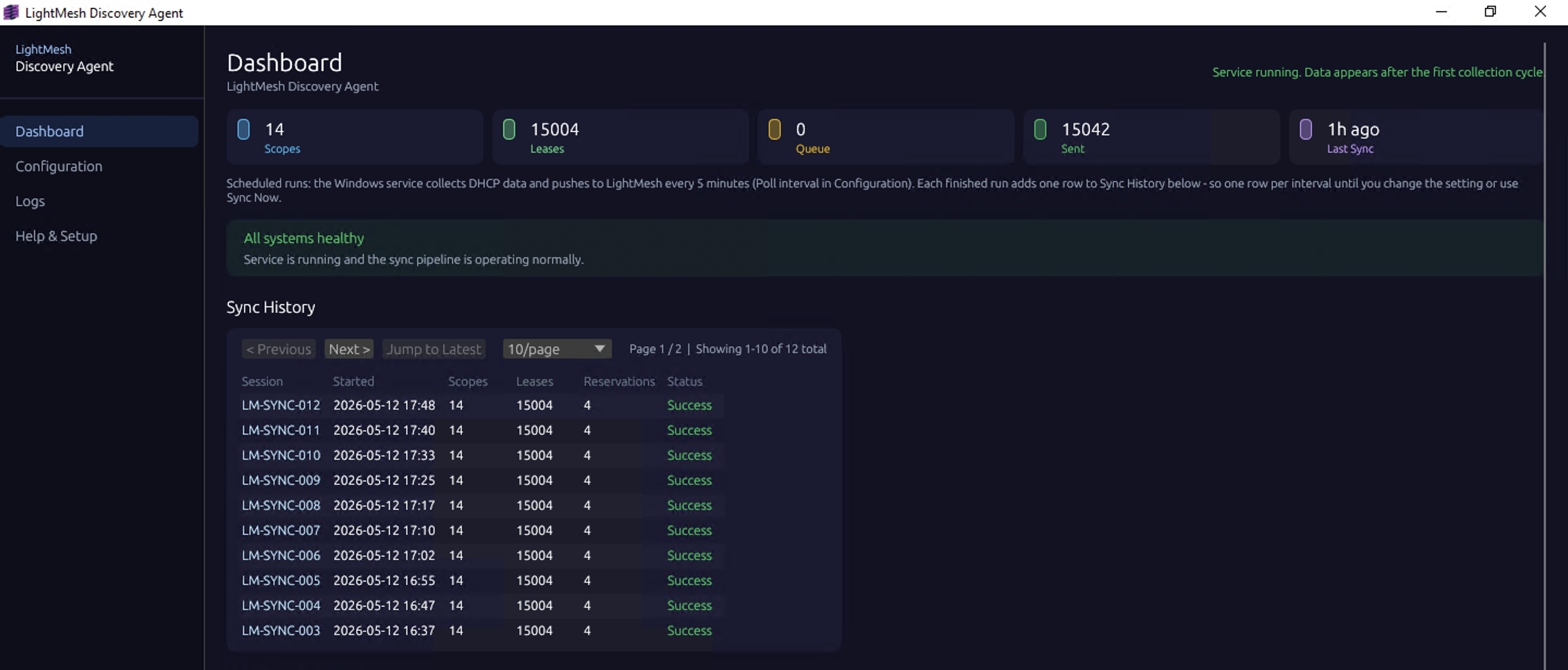
- Scopes, Active Leases, Queue, and Sent counts.
- Sync History: one row per completed run with the scopes, leases, and reservations it synced and its status. Use Jump to Latest to scroll to the newest run.
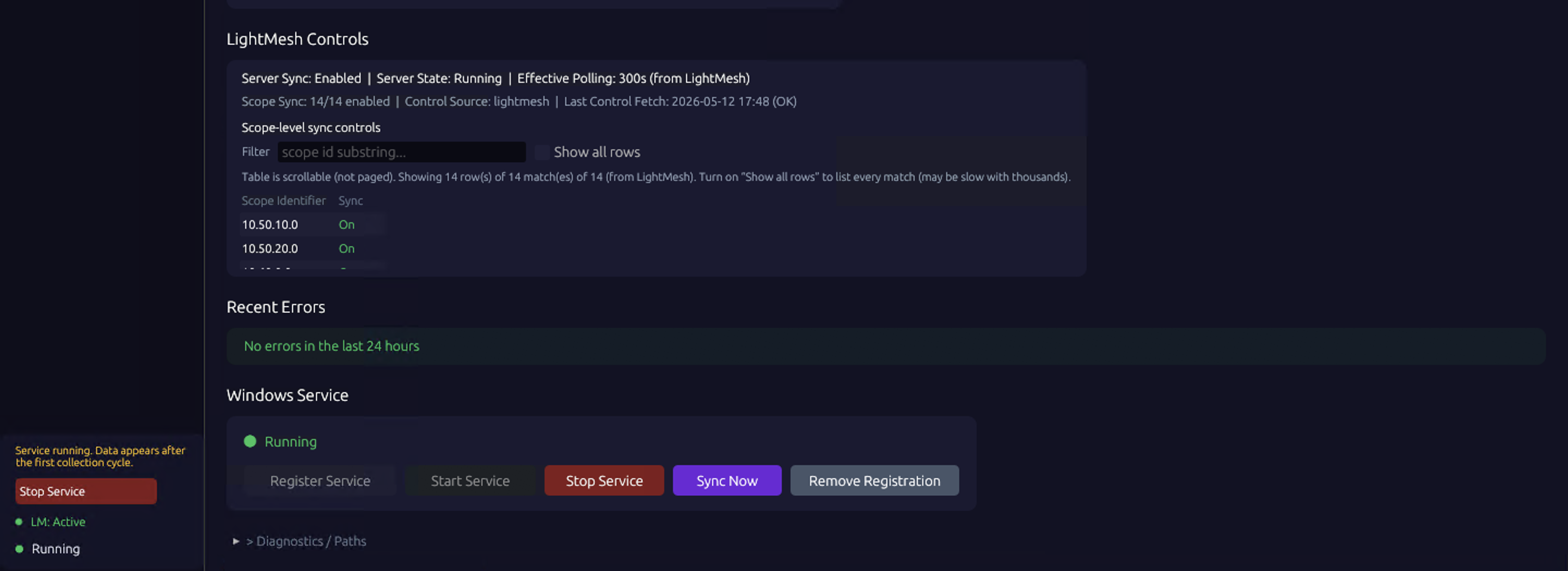
- LightMesh Controls: what LightMesh is telling the agent, including Server Sync, Server State, Effective Polling, and Scope Sync.
Scroll down for:
- Scope-level sync controls: the sync state of each scope, as set in LightMesh.
- Recent Errors: the latest collection or sync failures.
- DHCP settings: Collect DHCP data, the DHCP Server ID (GraphQL) (filled automatically on the first GraphQL run and used for pause, sync, and polling controls from LightMesh), and Source DHCP server FQDN. Click Save DHCP settings after any change.
- Diagnostics / Paths: the
config.tomlandagent.dblocations, plus Remove registration to unregister the Windows service and deleteagent.db.
6. Logs in the agent
Open Logs to inspect what the agent is doing.
- Search Logs filters the visible lines.
- Copy all copies the log to the clipboard; Reload refreshes the view.
- Auto-scroll follows new lines when enabled.
- App logs only hides noisy graphics stack lines (for example GPU or wgpu-related messages) so DHCP collection and LightMesh sync lines are easier to read.
- The viewer shows the last 5,000 lines of the log file.
Important: Logs are written when the Windows service runs a cycle or when you click Sync now on the Dashboard (or Run collection now from the tray). Simply leaving the Configuration window open without a running collection does not produce those lines.
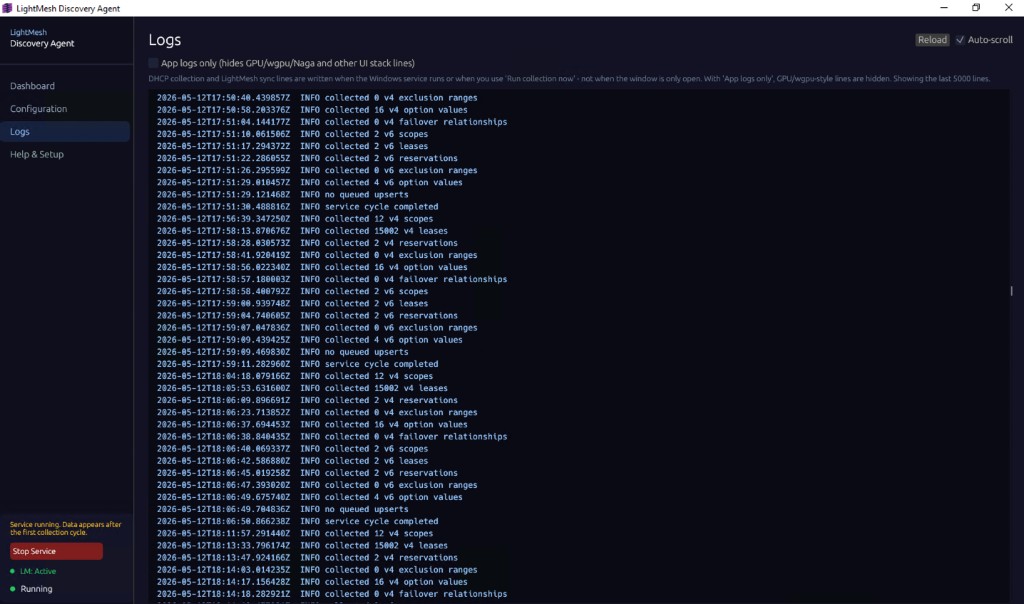
Typical INFO lines include counts for IPv4 and IPv6 scopes, leases, reservations, exclusion ranges, option values, and failover relationships, then the upload progress (for example upload: chunk 270/301 and GraphQL upload: lease chunk), followed by queue flush or service cycle completed.
7. DHCP in LightMesh: servers, scopes, and parent subnet
After sync succeeds, open Network > DHCP in the sidebar. Use the Servers, Scopes, and Leases tabs to browse what the agent imported.
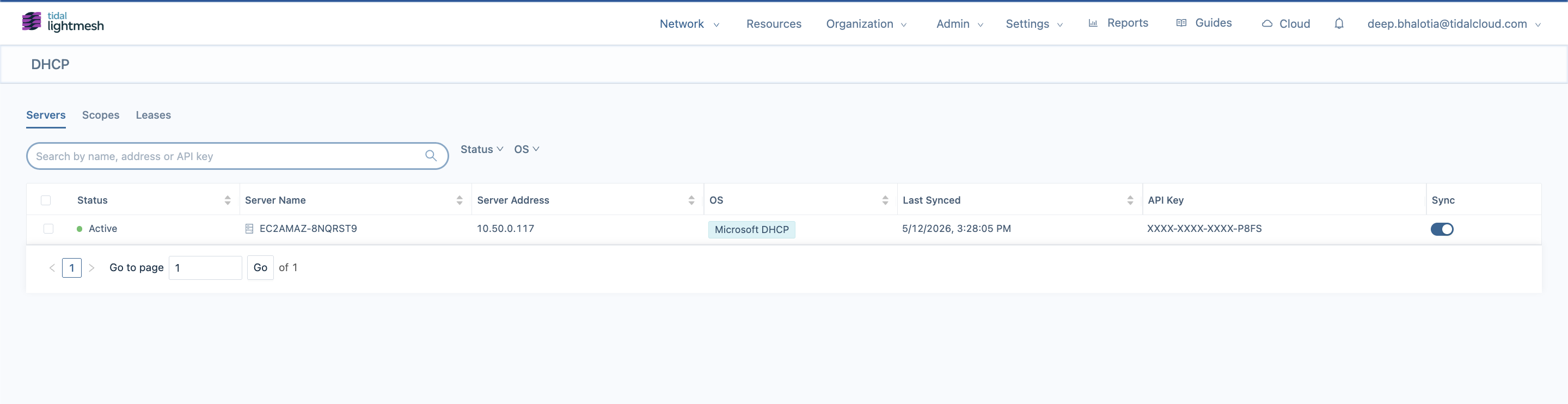
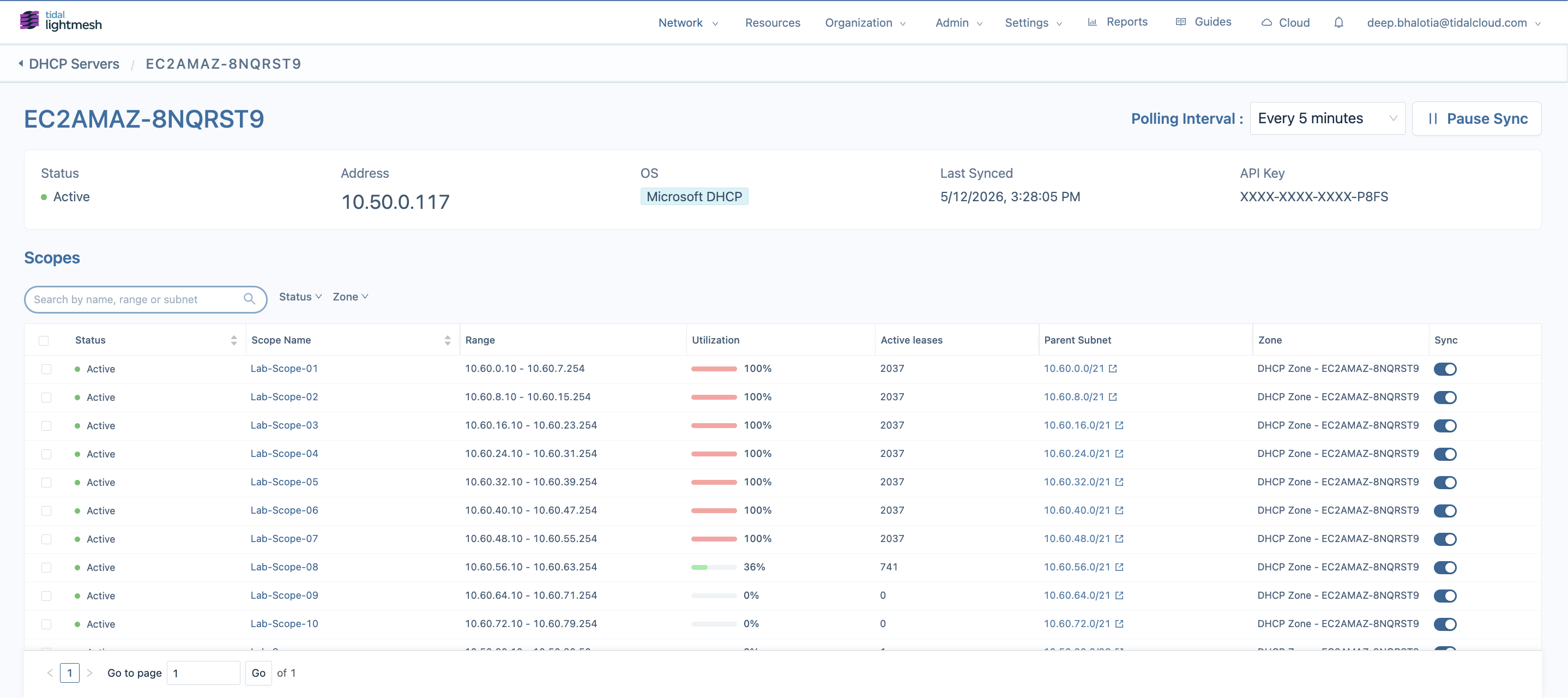
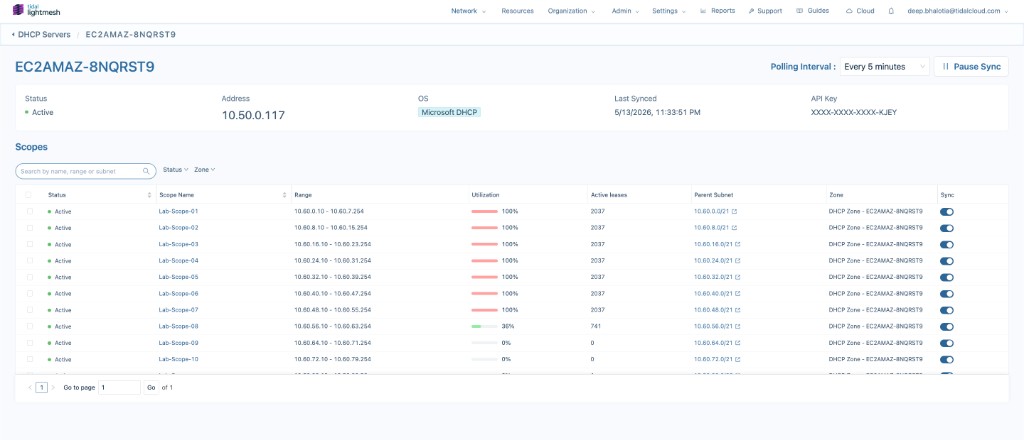
Click a server name to open its detail page. There you can see its Status, Address, OS, Last Synced, and API Key, change Polling Interval, use Pause Sync / Resume Sync, and review each scope.
Parent Subnet opens Subnets > IP Addresses
On the server Scopes table, the Parent Subnet column shows the subnet LightMesh associated with each scope (for example 10.60.0.0/21). Click the subnet link to open that subnet’s IP Addresses tab. That view lists DHCP-sourced assignments for addresses inside the scope range, tagged DHCP in the Reservation column; set the status filter to DHCP when you want only DHCP-backed addresses.
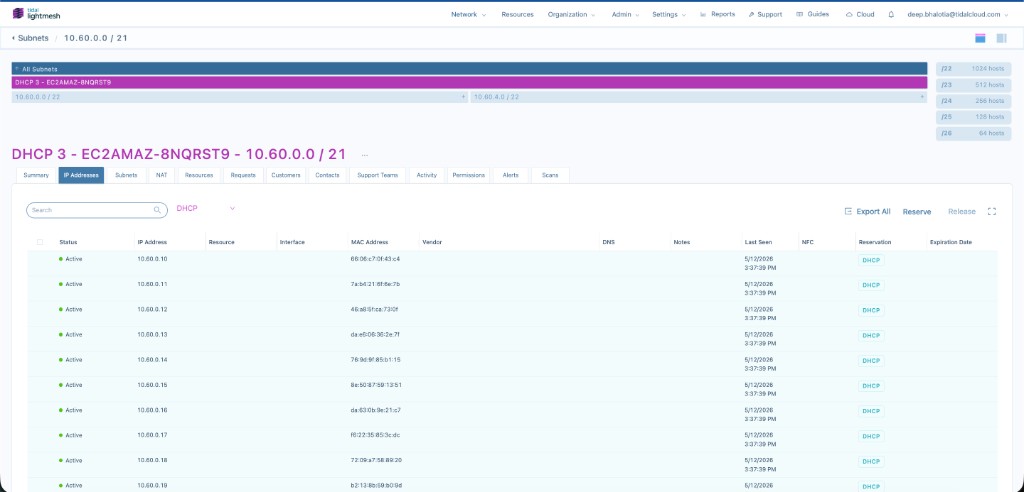
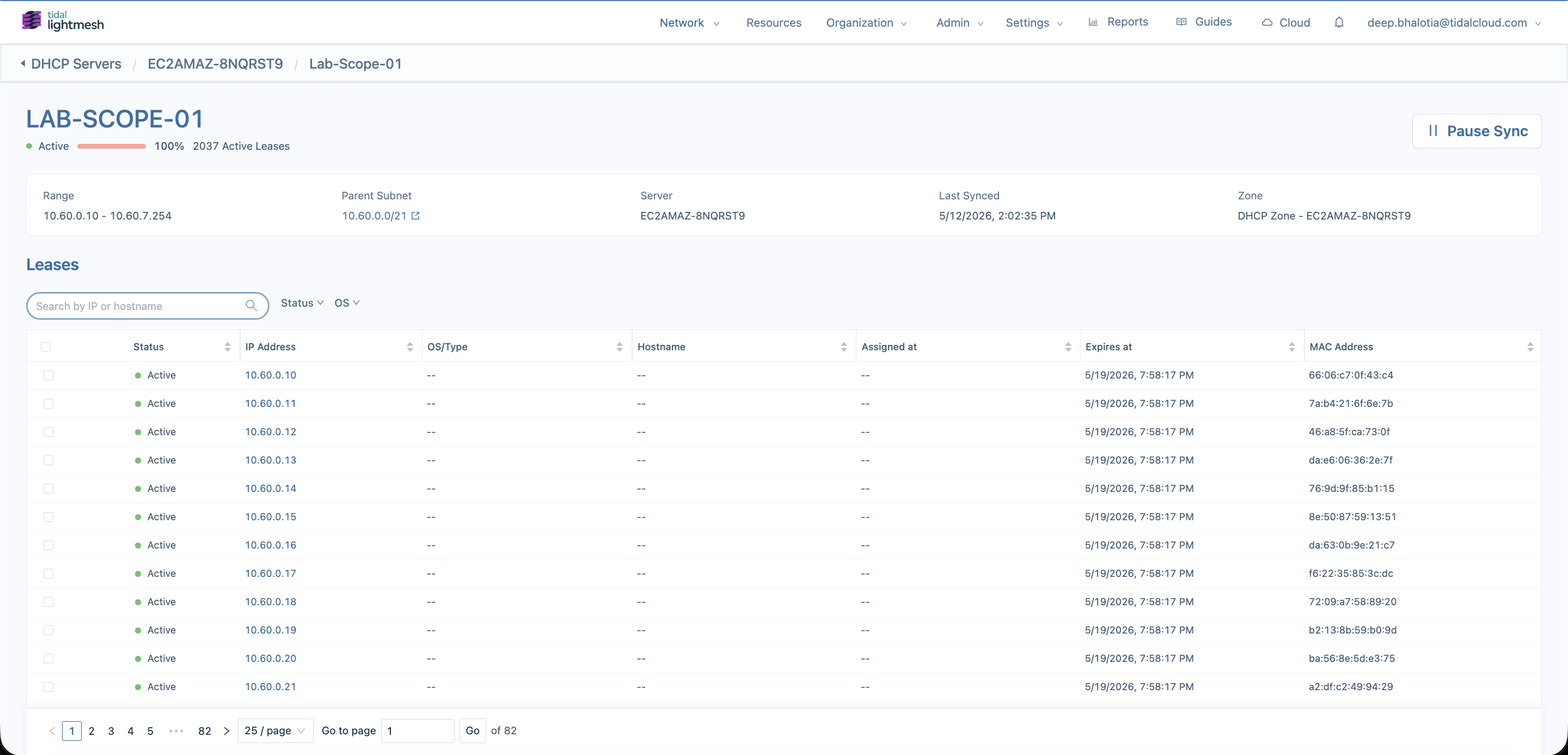
Open an individual scope or lease from Scopes / Leases to see utilization, lease rows, and lease history drawers as in the main LightMesh DHCP UI.
Operational notes
- Pause Sync stops updates for selected servers or scopes without deleting the last known DHCP data in LightMesh.
- Resume Sync allows the agent to update those records again on the next cycle.
- Archive marks a server archived; scopes and leases show last-known state until you restore the server.
- Export on the global Scopes tab downloads CSV exports for selected scopes or all scopes.
- The agent keeps a local queue in SQLite. If LightMesh is unavailable, sends retry with exponential backoff up to Max Send Attempts.
Troubleshooting
If DHCP data does not appear in LightMesh:
-
Confirm the sidebar status card shows Running with DHCP: On, and that Sync History on the Dashboard shows recent runs. Expand Recent Errors for the latest failures.
-
Open Configuration and check the Base URL connectivity probe. Fix Base URL or API Token until the probe shows OK, then click Save changes and restart the service if needed.
-
Open Logs, disable App logs only temporarily if you need full detail, and look for PowerShell, authentication, or network errors. Failed sync cycles log an actionable summary (for example DNS, TCP, TLS, proxy, or HTTP 401/403).
-
Confirm the API key uses the Discovery Agent role and has not expired.
-
On the DHCP server, verify cmdlets succeed, for example:
Get-DhcpServerv4Scope | Select-Object ScopeId,Name,State -
Confirm Base URL uses a hostname reachable from the Windows server (avoid
localhostunless LightMesh runs on the same machine). From PowerShell on the collector you can also run:Resolve-DnsName <host-from-base-url> Test-NetConnection <host-from-base-url> -Port 443 netsh winhttp show proxy
If the connectivity probe or logs mention IPv6 and IPv4, IPv6 routing may be broken while IPv4 works, which is common on some enterprise networks. If logs mention TLS certificate validation, install your organization’s SSL inspection root into the Windows certificate store.
Once collection and sync succeed, each polling cycle refreshes DHCP data in LightMesh and the IP Addresses views linked from Parent Subnet.