Set and use email-and-password sign-in
Email and password
Email and password sign-in lets you access LightMesh with your account email address and a password you set. It appears on every Sign-in Methods page and is often the backup method when you also use Google or Microsoft SSO.
See the Sign-in Methods overview for how to open the page.
When to add a password
Add a password if you:
- Signed up with Google or Microsoft only and want a fallback if that provider is unavailable.
- Need to confirm account linking when signing in with a new SSO provider using an email that already has a LightMesh account.
- Prefer email-and-password sign-in in addition to SSO.
Set a password
- Open Account → Sign-in Methods (
/account/sign-in-methods). - Find the Email and password row.
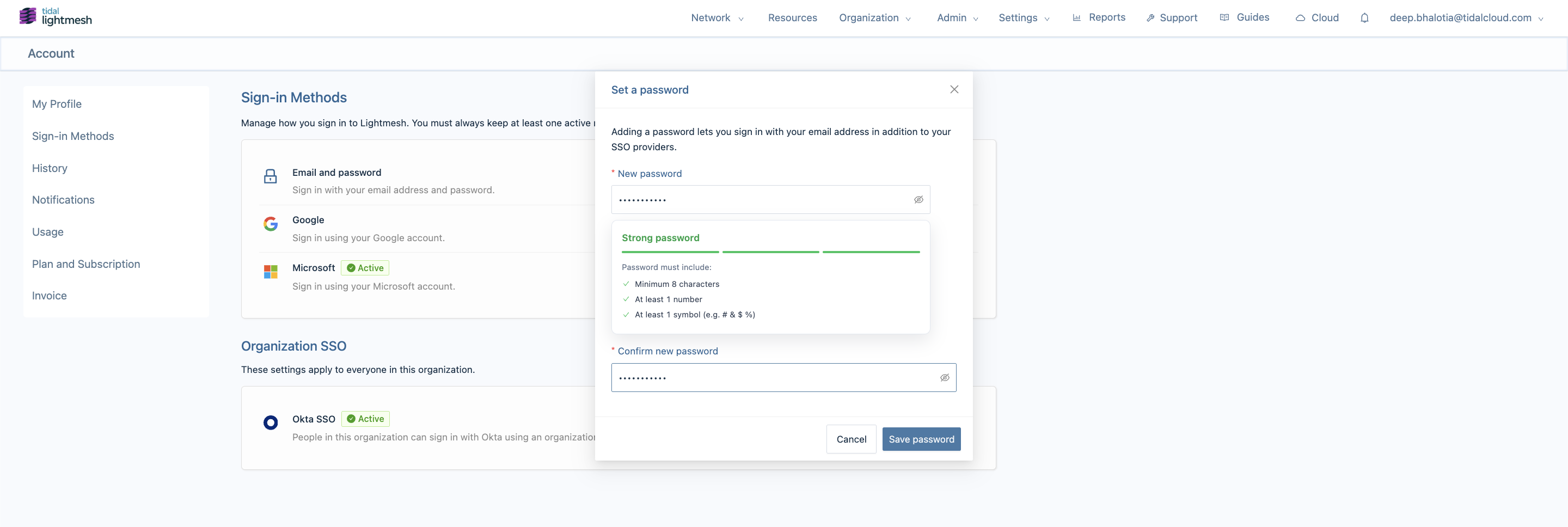
- Click Set a password.
- Enter and confirm your new password.
- Click Save password.
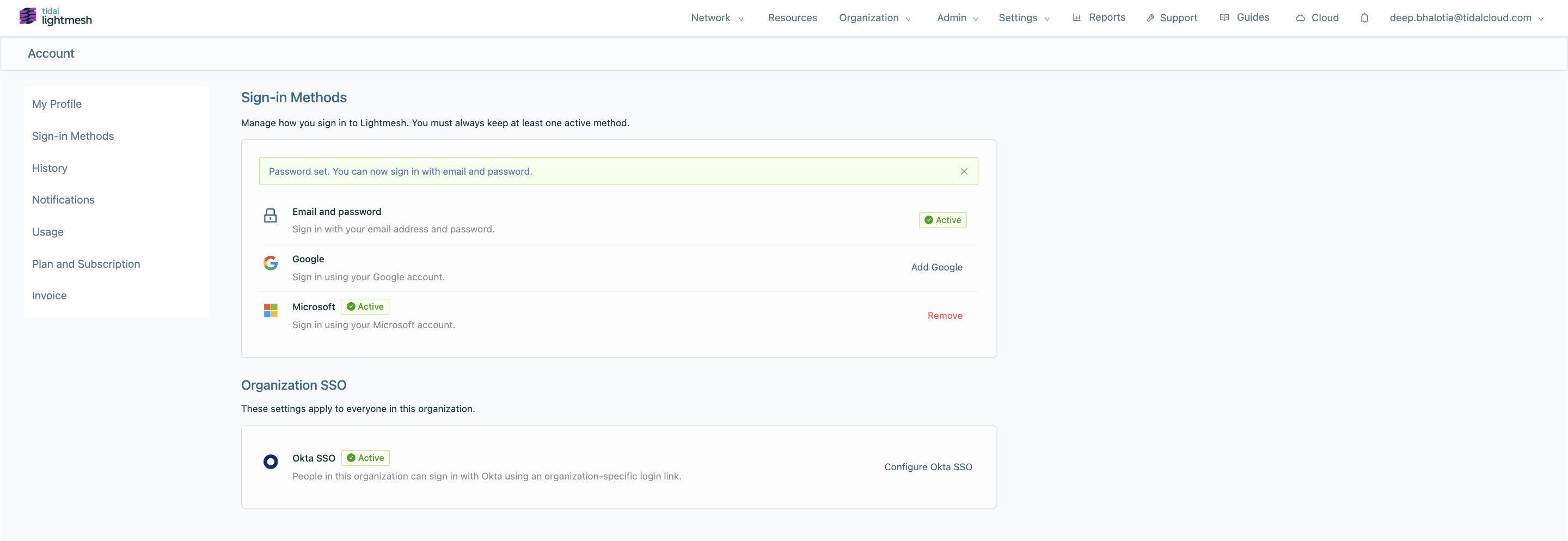
After saving, the row shows a green Active tag and you can sign in from the login page with your email and password.
Password requirements
LightMesh enforces these rules when you save a password:
- Minimum 8 characters
- Must include at least one number
- Must include at least one symbol
- Maximum 64 characters
The modal shows a strength indicator while you type. If the password does not meet the rules, you see an error such as:
Password must be at least 8 characters and include a number and symbol.
Cannot remove password
You cannot remove email-and-password sign-in from the Sign-in Methods page. Once set, it counts as an active sign-in method.
If you want to rely on SSO only, you must first link Google or Microsoft (or keep another SSO method active), then remove other providers — but the password row itself stays Active as long as a password is set on your account.
To change your password after it is set, use Account → My Profile or the password reset flow from the login page.
Keep at least one method
LightMesh requires at least one active sign-in method on your account. Email and password counts toward that minimum. If it is your only active method, you cannot remove Google or Microsoft until you add another method first.
See Google or Microsoft for the remove flow and tooltip text.