Automate Nmap Network Scans and Sync Results with LightMesh
Scheduling NMAP Scans
Setting Up Nmap Scan and Sync for Subnets
This guide will help you set up a Linux cron job on either Debian/Ubuntu or RedHat-based systems to perform automated Nmap scans on your subnets and sync the results with LightMesh. You can adjust the cron schedule to suit your needs.
Prerequisites
Before setting up your cron job, make sure the following prerequisites are met:
-
Installing Nmap and Node.js/npm on your system:
- On Ubuntu/Debian:
sudo apt install nmap nodejs npm - On CentOS/RedHat:
sudo yum install nmap nodejs npm
- On Ubuntu/Debian:
-
Install the LightMesh CLI using npm:
- If not already installed, you can install the LightMesh CLI globally with npm:
npm install -g @lightmesh
- If not already installed, you can install the LightMesh CLI globally with npm:
-
Ensure proper permissions to use Nmap and cron jobs on your server. Make sure that the script is added to the root account’s crontab or an account with password-less sudo privileges.
-
Ensure your subnets are already added in LightMesh.
-
Create a LightMesh API Key:
- Go to the LightMesh web app and navigate to: Admin > API Keys > Add API Key
- Set the expiration date to the maximum duration you require.
- Store the API key securely.
Once these prerequisites are complete, you’re ready to proceed.
Step 1: Create a Bash Script for Nmap Scan and Sync
Create a bash script to perform the Nmap scan and LightMesh sync. Use the following command:
#!/bin/bash

# Define arrays for subnets and corresponding LightMesh IDs
SUBNETS=("10.0.0.0/26" "10.0.0.0/27")
FILES=("10.0.0.0_26-scan.xml" "10.0.0.0_27-scan.xml")
IDS=("38" "39")  # Replace with your actual LightMesh IDs

# Ensure the number of subnets matches the number of files and IDs
if [ ${#SUBNETS[@]} -ne ${#FILES[@]} ] || [ ${#FILES[@]} -ne ${#IDS[@]} ]; then
    echo "Mismatch between the number of subnets, files, and IDs."
    exit 1
fi

# Run Nmap scans
for i in "${!SUBNETS[@]}"; do
    echo "Running Nmap scan for subnet ${SUBNETS[$i]}..."
    sudo nmap -sn -v "${SUBNETS[$i]}" --host-timeout 10m -oX "${FILES[$i]}" > /tmp/nmap_scan_${i}.log 2>&1 &

    # Wait for the scan to complete
    wait $!
    if [ $? -ne 0 ]; then
        echo "Nmap scan failed for subnet ${SUBNETS[$i]}. Check /tmp/nmap_scan_${i}.log for details."
        exit 1
    fi
    echo "Completed Nmap scan for subnet ${SUBNETS[$i]}."
done

# Export LightMesh API token
export LIGHTMESH_API_TOKEN="YOUR_API_KEY"

# Sync scan results with LightMesh
for i in "${!FILES[@]}"; do
    echo "Syncing results for file ${FILES[$i]} with LightMesh ID ${IDS[$i]}..."
    lightmesh scan sync --id "${IDS[$i]}" --file "${FILES[$i]}"

    # Check if sync was successful
    if [ $? -ne 0 ]; then
        echo "Failed to sync scan results for file ${FILES[$i]}."
        exit 1
    fi
done

echo "All scans and syncs completed successfully."
Variables:
- SUBNETS: Array of subnets to scan.
- FILES: Array of output file names corresponding to each subnet scan.
- IDS: Array of LightMesh IDs corresponding to each file.
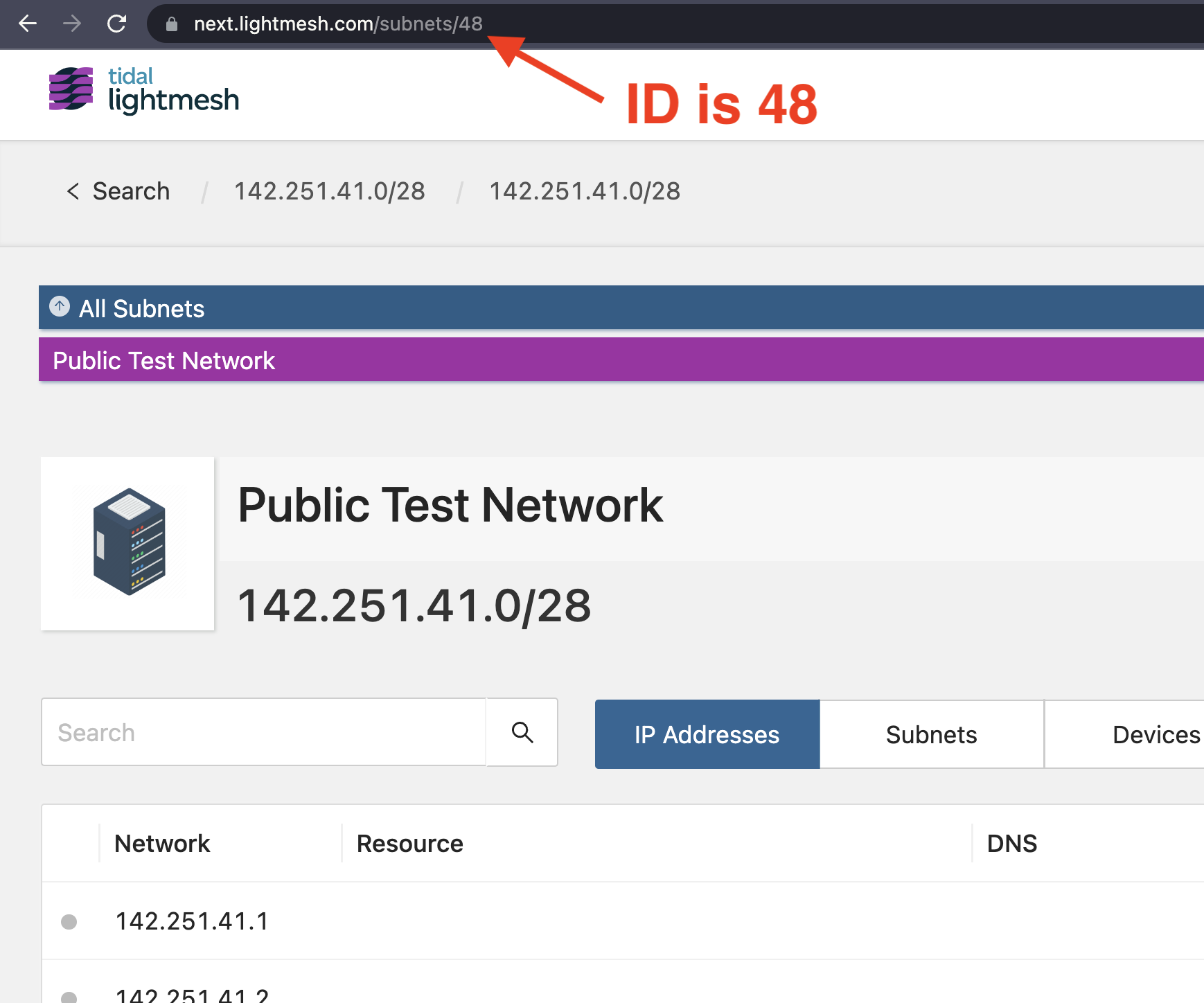
- YOUR_API_KEY: Replace this placeholder with your actual LightMesh API key.
Save this file as nmap_and_sync.sh and make it executable:
chmod +x /path/to/nmap_and_sync.shStep 2: Set Up a Cron Job
Now, create a cron job to run this bash script on a weekly schedule. To schedule it for every Monday at 12:00 AM, follow these steps:
1. Open the crontab:
crontab -e2. Add the following line:
0 0 * * 1 /path/to/nmap_and_sync.shHere’s how the cron expression works:
- 0: Minute (0 = the beginning of the hour).
- 0: Hour (0 = midnight).
- *: Day of the month (any day).
- *: Month (any month).
- 1: Day of the week (1 = Monday).
This cron job will execute the nmap_and_sync.sh script every Monday at midnight. The script performs the Nmap scan and then immediately uploads the results to LightMesh.
Security Note
For security reasons, it is recommended to inline the API key directly into the script and set the permissions on the script to only allow the owner to read, write, and execute it. This can be done using the following command:
chmod 700 /path/to/nmap_and_sync.shBy following this guide, your system will automatically scan and sync your subnets on a weekly basis using cron and the LightMesh CLI.
Scanning with ZenMap (GUI)
ZenMap is the official nmap graphical front-end, bundled with the Windows nmap installer and also available on macOS and Linux. Several of our customers have found ZenMap more reliable than the command-line nmap build on Windows, which can crash on some hosts. ZenMap runs the same nmap engine under the hood and produces the same XML output the LightMesh CLI consumes, so it drops cleanly into the sync workflow documented above.
Why ZenMap
- GUI on Windows and macOS — no terminal required, lower barrier for engineers who don’t live in a shell.
- More reliable than the Windows CLI build — the GUI wraps the same engine but avoids shell/quoting issues that can crash
nmap.exeon some Windows hosts. - Same XML output — Save as Nmap XML (Windows/macOS: File → Save; Linux: Scan → Save Scan) for
lightmesh scan sync.
Install ZenMap
Download the official nmap installer from nmap.org. On Windows, the installer bundles ZenMap automatically. On macOS, install the ZenMap .dmg from the same page.
Run a ping-sweep scan in ZenMap
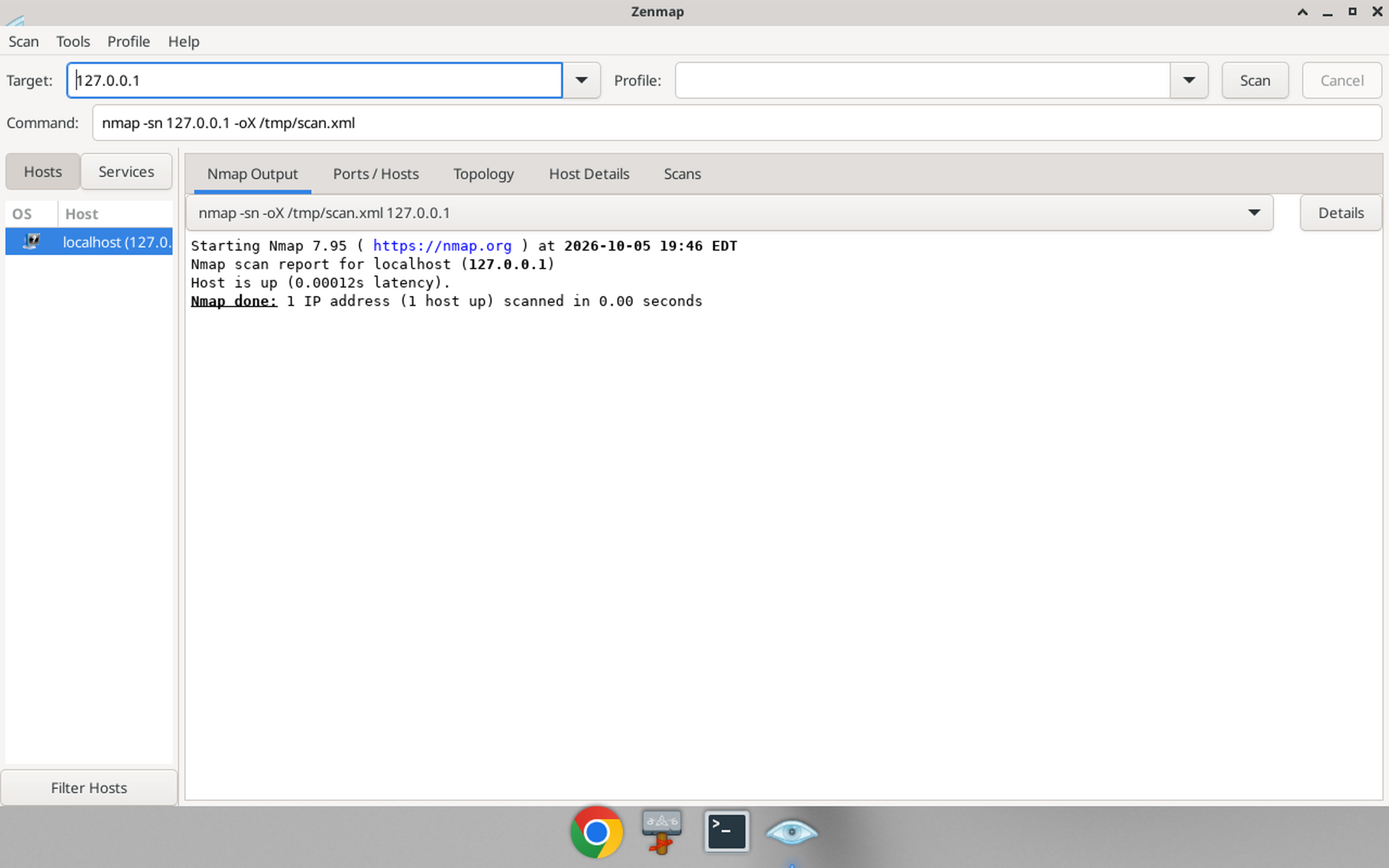
- Open ZenMap and enter the scan command in the Command field (or pick the Ping scan profile from the dropdown and append
-oX scan.xml):nmap -sn 10.0.0.0/24 -oX scan.xml - Click Scan.
-snperforms host discovery only (no port scan) — the lightest, fastest discovery option.-oX scan.xmlwrites the results as XML for LightMesh sync.
Save the scan as XML
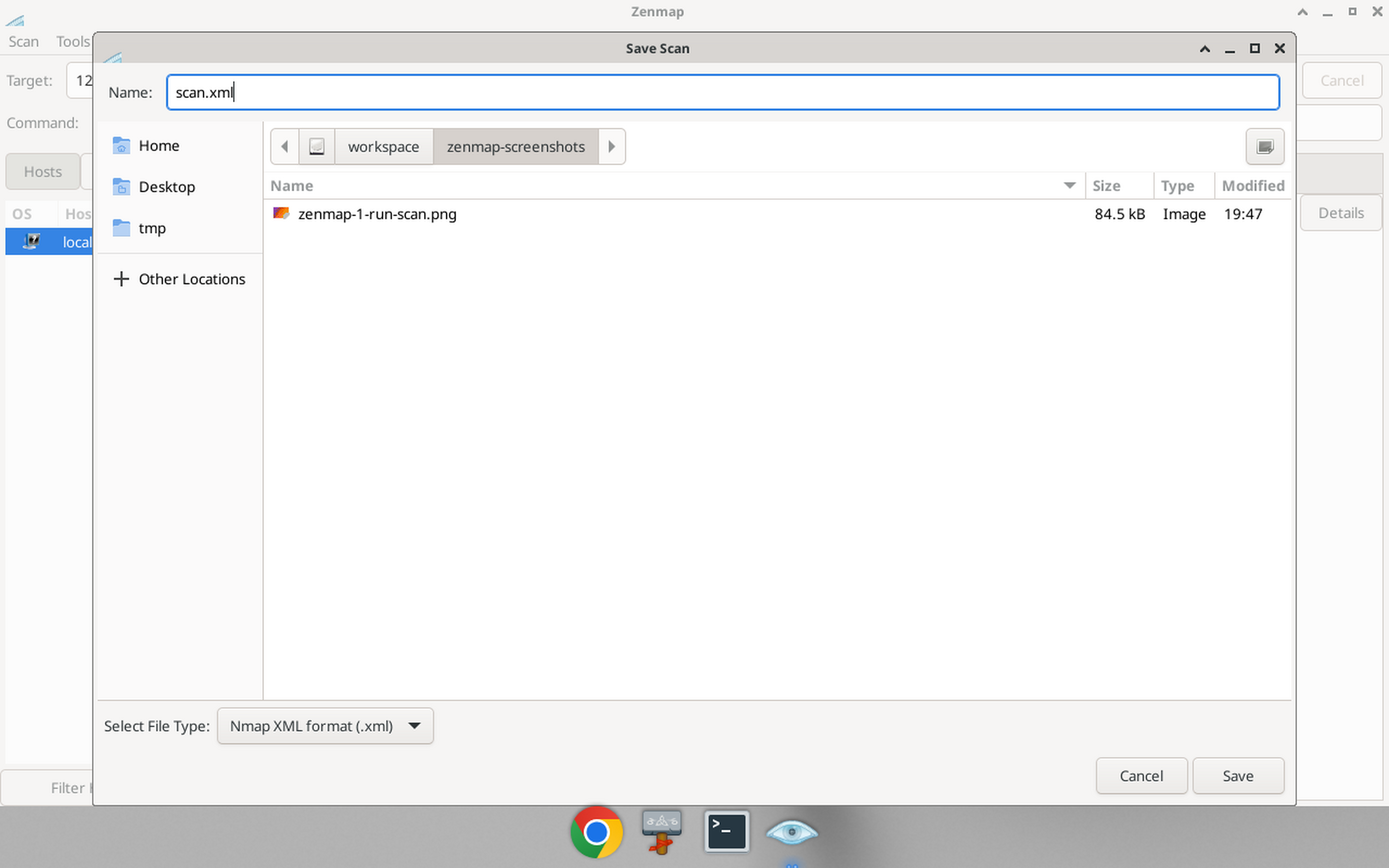
- After the scan completes, open the save dialog: on Windows/macOS choose File → Save; on Linux choose Scan → Save Scan (or press Ctrl+S).
- In the save dialog, select Nmap XML format (.xml) as the file type.
- Pick a filename (e.g.
scan.xml) and save.
(Optional) TCP port scan variant
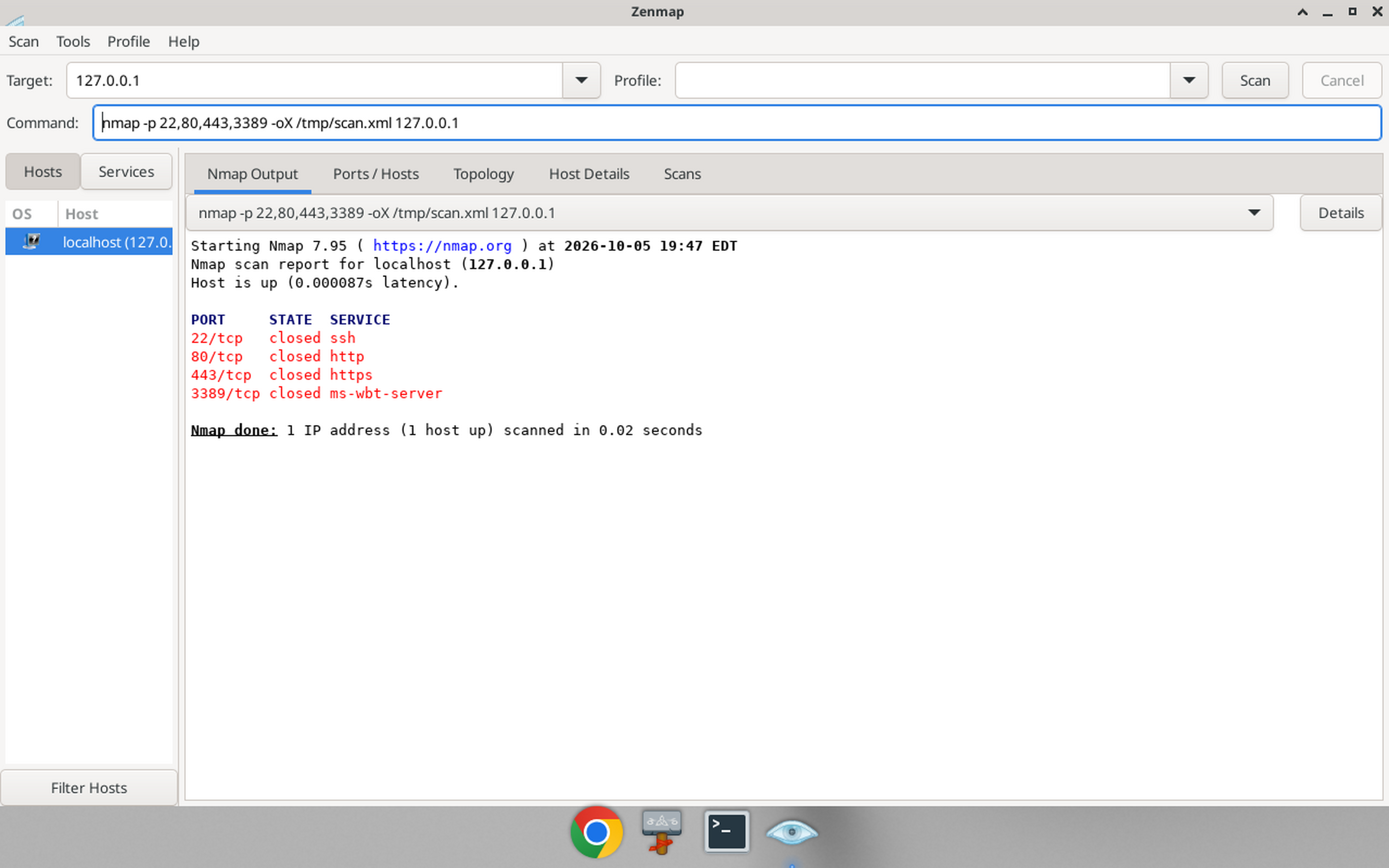
If ICMP is blocked on your network, or your hosts are hardened to not respond to ping, scan a handful of common TCP ports instead (use -Pn so nmap treats hosts as up and still probes the ports):
nmap -Pn -p 22,80,443,3389 10.0.0.0/24 -oX scan.xmlThis is slower than a ping sweep and may trigger IDS/IPS devices — seek permission from your security team first, as noted in Getting Started.
Sync the XML into LightMesh
With the XML file saved, sync it into LightMesh using the same CLI step as the cron workflow above:
export LIGHTMESH_API_TOKEN="your-api-key"
lightmesh scan sync --file scan.xml --id <subnet-id>
Don’t have the lightmesh command? See the CLI installation guide.
FAQ
Should I use ZenMap or the nmap CLI?
Either works — both produce the same Nmap XML that lightmesh scan sync consumes. Prefer ZenMap on Windows if the CLI build crashes or quoting is painful; use the CLI (or cron) on Linux for automation.
Hosts show as down even though they are online. What should I try?
ICMP may be blocked or hosts may ignore ping. Use a TCP port-scan variant with -Pn so nmap treats hosts as up and still probes ports (see TCP port scan variant above). Get security approval first — port scans can trip IDS/IPS.
Which file format do I need for LightMesh?
Save as Nmap XML (.xml). Other formats (normal text, grepable, etc.) will not sync. In ZenMap: Windows/macOS File → Save; Linux Scan → Save Scan, then choose Nmap XML.
lightmesh scan sync fails. What should I check?
Confirm LIGHTMESH_API_TOKEN is set, the file path points to valid Nmap XML, and --id is the correct LightMesh subnet ID. Re-open the XML and ensure it contains <nmaprun / host entries from a completed scan.
Is Windows nmap reliable?
Some Windows hosts see nmap.exe crashes or shell/quoting issues. Customers often have better results with ZenMap on those machines while keeping the same sync workflow.
Related
- For automated Linux cron scans, see Setting Up Nmap Scan and Sync above.
- For a click-through upload tutorial, see NMAP Scan in Subnets.